Project Summary
To potentially develop a SaaS code presentation product for software developers, I aimed to uncover pain points that users found to be manually intensive, error-prone, knowledge-dependent, and cognitively demanding. Through my generative research study, I discovered four major problems software developers encounter when presenting code. These issues significantly impact their code presentation delivery performance and productivity when preparing and presenting their code projects. To tackle these problems, I developed four systems:
- A code grouping system to facilitate the preparation of organizing code for a presentation, saving hours of productivity.
- A note documentation system allowing developers to write presenter notes and document their code for presentation, helping them declutter their code from messy comments.
- A task automation system for automating common code presentation operations, thereby improving productivity.
- A presentation system for automating the presentation of code projects, eliminating typos, errors, and bugs, and enhancing code presentation performance and time efficiency. This enables developers to focus on delivering their presentations rather than getting bogged down by the manual and error-prone technical aspects of presenting code.
Problem Statment
Developers face many challenges in preparing and presenting their code effectively, leading to reduced productivity and presentation quality. The manually intensive process of preparing their code for presentation, coupled with the lack of dedicated code presenter tools, results in time-consuming preparations leading developers to make fewer code presentations. Additionally, typing code during presentations causes frequent typos, errors, bugs, and disruptions, impacting the flow and quality of the presentation. The lack of presentation tools forces developers to use multiple tools and techniques fragmenting their presentation setup leading to multitasking and increasing the likelihood of errors and distractions during code presentations. These challenges not only consume substantial time and effort during code preparation but also impede presentation progress, diverting developers' focus from content delivery to grappling with code and presentation-related hurdles. In response to these issues, there is a pressing need to develop systems that streamline code preparation, enhance code readability, eliminate errors, and improve the overall presentation experience.
Key challenges according to the generative research study:
Code Build Order & Setup is Manually Intensive
Participants face challenges in preparing their code for presentation, such as manually setting the code presentation build order by writing comments to their code (Image: marker 1) or by using an external note tool. Setting the presentation code build order is time-consuming resulting in participants making shorter easier presentations and in some cases participants mentioned making fewer presentations due to the amount of work it takes to prepare their code.
- The code build order is set using comments (i.e. // 1, // 2). Comments are added using “//” turning the proceeding text dark green.
Slide 1 of 5
Read More - Problem Statement Document
Problem Statement
Who
Who has the problem?
Target User Group
The following outlines the user profiles for software developers who showcase and prepare programming projects with the purpose of:
Creating educational and informative programming tutorials
- 7 out of 8 total participants recruited
Showcasing informational slide show presentation
- 0 out of 8 total participants recruited
Conducting a live programming demo
- 1 out of 8 total participants recruited
The ideal research study would total 24 participants per target user group.
What
What are the problems or key challenges?
Software developers face several key challenges when preparing and presenting code:
Code Build Order & Setup is Manually Intensive
Participants face a multitude of hurdles when trying to prepare their code for presentation. This challenge includes spending a large amount of time manually setting the build order of code using external note tools or code comments leading to disjointed and hard-to-read source code.
Presentation Notes And Code Readability Issues
The absence of dedicated presenter notes and features results in developers resorting to adding comments directly to the code. This practice makes the code harder to read, impacting the presenter's ability to navigate smoothly through the presented material. Some developers resort to using external tools for making scripts and annotating code.
Typing Errors and Bugs
Developers encounter errors and typos while typing and presenting code, disrupting the flow of their presentation and requiring time-consuming corrections in post-production. During the presentation process, developers mentioned having trouble with cognitively demanding tasks like typing and explaining their code leading to misspeaking and mistyping.
Testing, Building, And Running Code
Due to the complexity of software development, multiple developers expressed the need to test, build, and run their code on their preferred development environment using adequate tools for troubleshooting their code.
Lack of Presentation Tools
Due to a lack of presentation tools, developers resort to jerry-rigging their project presentation setup by manually splitting their layout into multiple screens requiring them to jump back and forth reading their notes and reference code leading to massive cognitive load and human errors.
Accessibility, UI Layout And Settings
Certain development tools lack accessibility features, negatively impacting the quality of code presentation. Due to this issue, developers have voiced their desire for comprehensive accessibility features and settings to enhance the legibility of their code across various devices. Additionally, maintaining a clean UI layout is crucial to avoid distracting the audience during code presentations.
Where
Where/When the problem is occurring?
These challenges occur primarily during two key phases:
Preparing Code and Notes for Presentation
Participants encounter difficulties when manually organizing their code and notes for presentation, leading to inefficiencies and increased preparation time.
Presenting Code
During the presentation, developers struggle with typos, distractions, and multitasking challenges, hindering the smooth delivery of their content and leading to spending more time on post-production editing out their mistakes.
Why
Why is it important to address the problem?
Addressing these challenges is crucial because:
Time Investment And Product Creation
Developers are currently spending excessive hours preparing their code and notes for presentation, impacting overall productivity and content creation.
Error Reduction
Typos and programming errors, stemming from the multitasking nature of explaining code, reading notes, and writing code simultaneously, need to be minimized to enhance the quality of presentations.
Efficiency in Presentation
Streamlining the code presentation process using autonomous systems will contribute to shorter presentation times, allowing developers to focus on delivering content rather than typing code.
Targeted Demographic
Facilitating code presentation preparation and presentation for software developers
The targeted demographic for the case study is software developers who showcase and prepare programming projects with the purpose of:
- Creating educational and informative programming tutorials
- Showcasing informational slide show presentation
- Conduct informative live programming demos
Market Opportunities
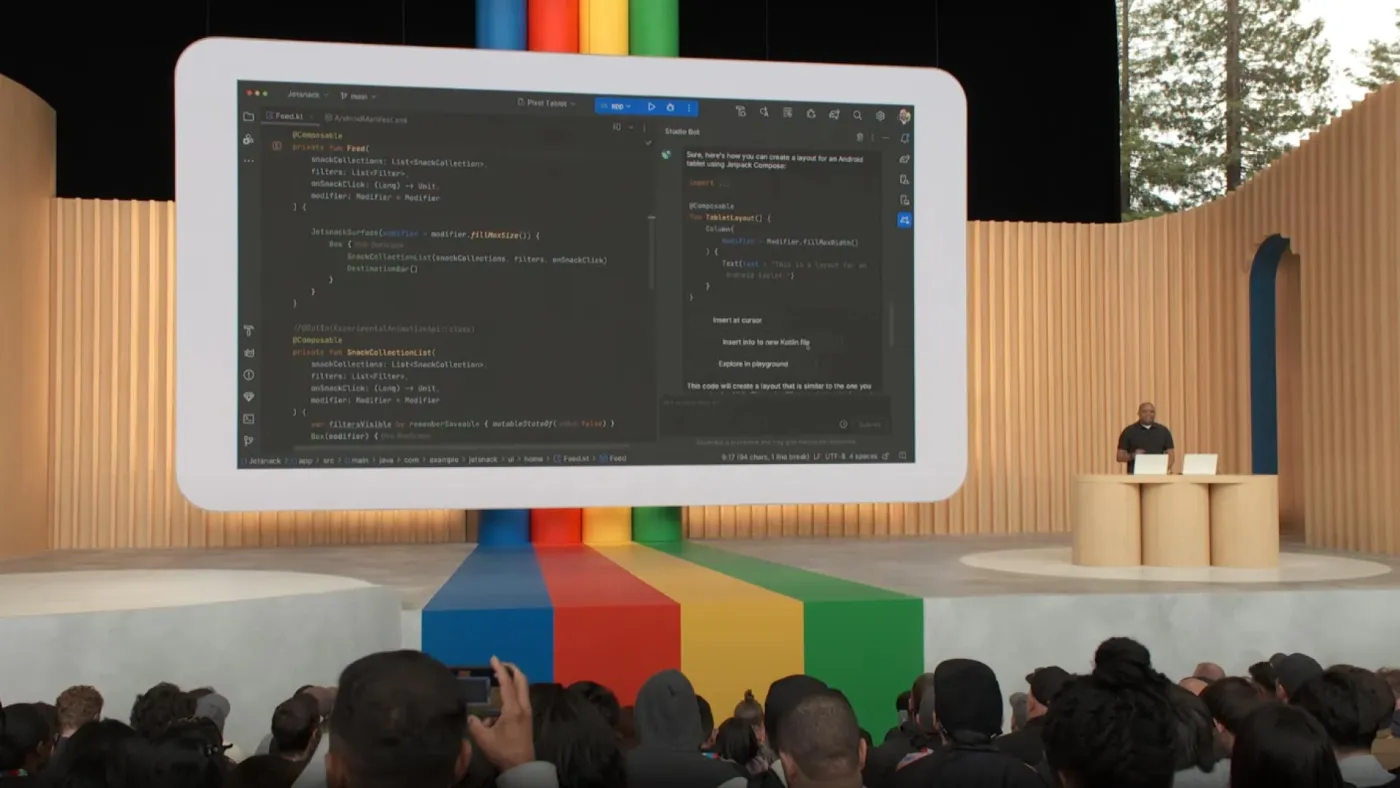
With the evolution of the digital landscape and various platforms, more opportunities and methods have emerged for learning and teaching software development. For example:
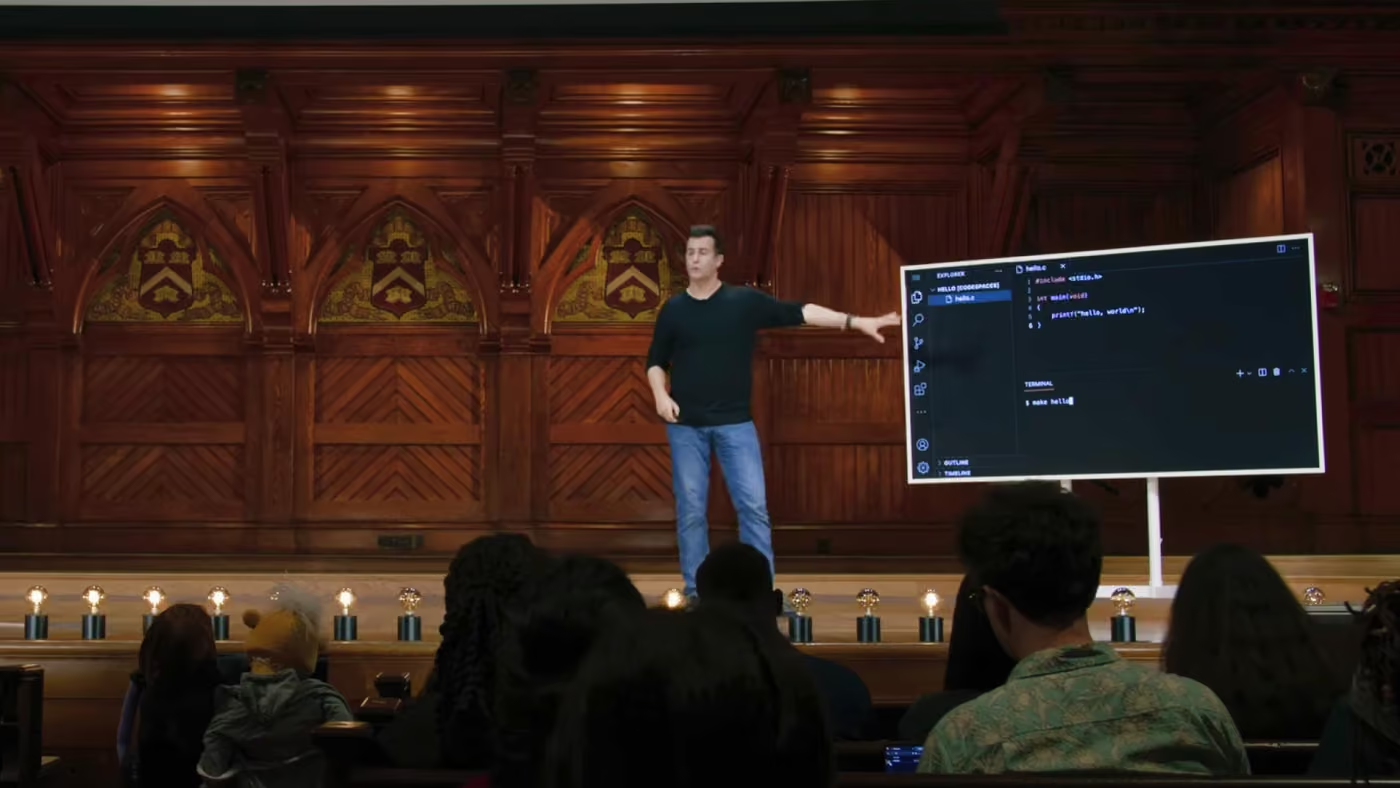
University professors conducting a live coding lecture
Professor David Jay Malan's step-by-step in-depth lecture on teaching students about the C programming language.
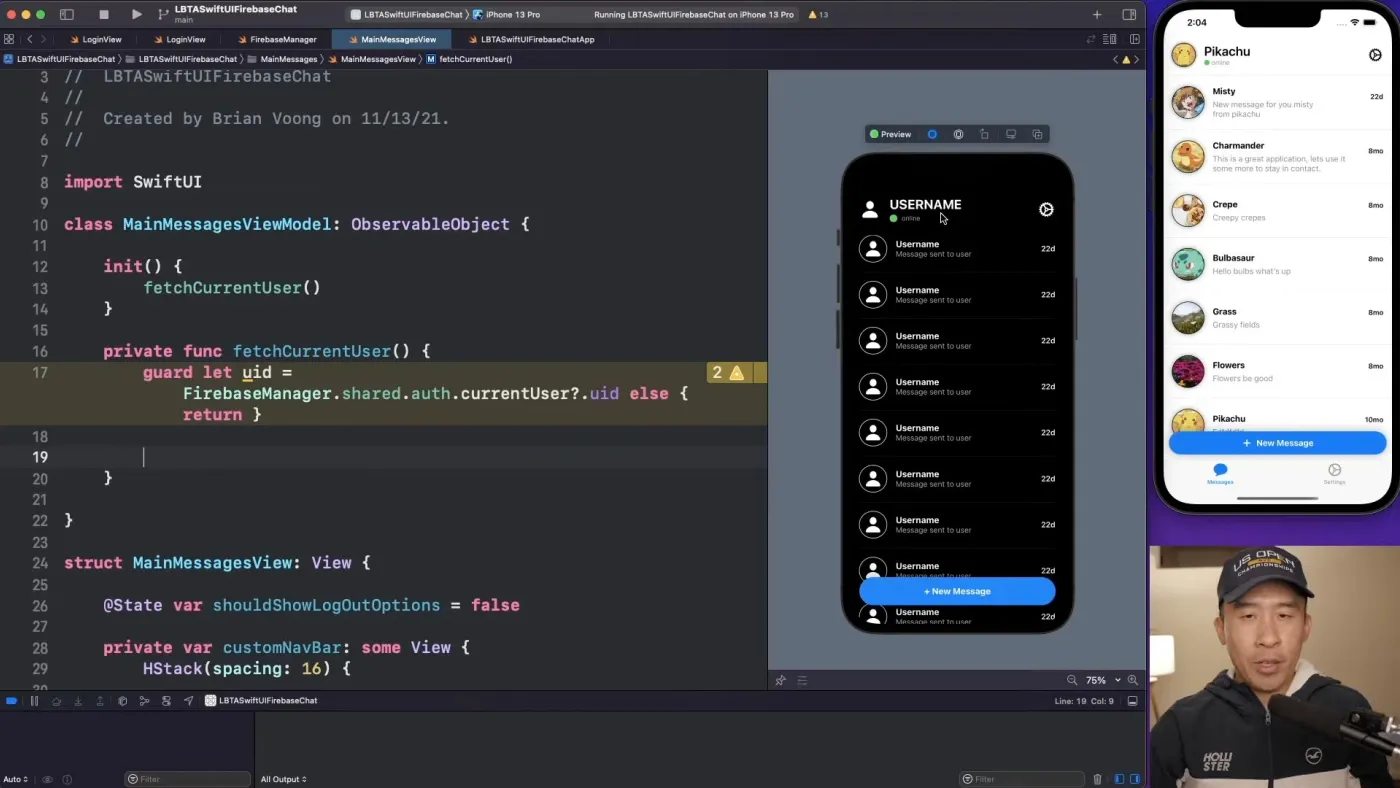
Slide 1 of 3
My Roles and User-Centered Design Process
The case study was a solo project that led me to take on multiple roles from user experience research to UX interaction, and UI design.
User Experience Research (UXR)
- Problem Discovery: Secondary observational online research leads to discovering code presentation pain points, questions, and assumptions.
- Knowledge Quadrant: Gathered 29 assumptions and questions for the research plan.
- Research Plan: Devised a research plan outlining objectives, questions, scope, methodology, timeline, resource allocation, risk assessment, data analysis plan, and findings.
- User Interview Plan: Defined the methodology, questions, and general structure for the user interview.
- Screener Survey: Developed a 10-question screener survey for filtering targeted candidates according to the user interview plan.
- User Interview: Conducted an open-ended generative interview, answering questions from the research plan and gathering findings and insights from 8 participants.
- Competitive Analysis: Analyzed 3 products to evaluate strengths and weaknesses and areas of discontent in the code presentation market.
- Affinity Diagram: Synthesized the user interview resulting in 14 clusters of data reflecting patterns in error-prone tasks, code setup, note documentation, and many more.
- Task Analysis & Optimized Task Analysis: Analyzed the user research, competitive analysis, and affinity diagram to generate findings, insights, and systems.
- Problem Statement: Documented the main challenges and pain points in the study according to the user research findings.
- Research Report: Documented insights and findings gained from the user interview, affinity diagram, and task analysis, providing actionable recommendations to improve key issues.
Interaction Design (UX)
- Sketches: Used the research insights and artifacts to brainstorm and sketch systems that target the common pain points of participants.
- Wireframing: Converted the sketches into medium-fidelity designs, outlining the product's structure, layout, and functionality.
- Conceptual Prototype: Due to the complexity of prototyping software development features, I crafted a simplified, conceptual representation of Prescode showcasing its four major systems: snippet, note, action, and presentation tool.
User Interface Design (UI)
- High-Fidelity Design: Refined the wireframes, creating a polished high-fidelity user interface design in preparation for the conceptual prototype.
- Design System: Created the design system to define rules, guidelines, and branding, ensuring consistency and efficiency in developing user interfaces.
Scope and Constraints
No budget and Research Difficulties
As a solo project, most of the roles and responsibilities relied on my ability to perform user research, UX, and UI. The absence of stakeholder collaboration hindered the opportunity to seek feedback and improvements on processes and artifact details that I may have overlooked. I had no budget for this project, therefore I made a great effort to use multiple mediums to reach out to my targeted demographic for participation in the user research which proved to be extremely challenging due to the lack of volunteers forcing me to spend a lot more time on recruiting than expected and forcing me to settle with 8 participants instead of the targeted 24.
User Experience Research (UXR)
Problem Discovery
Secondary research leads to assumptions and questions and eventually inspires generative research exploring developers’ needs for a SaaS solution identifying and addressing code presentation challenges.
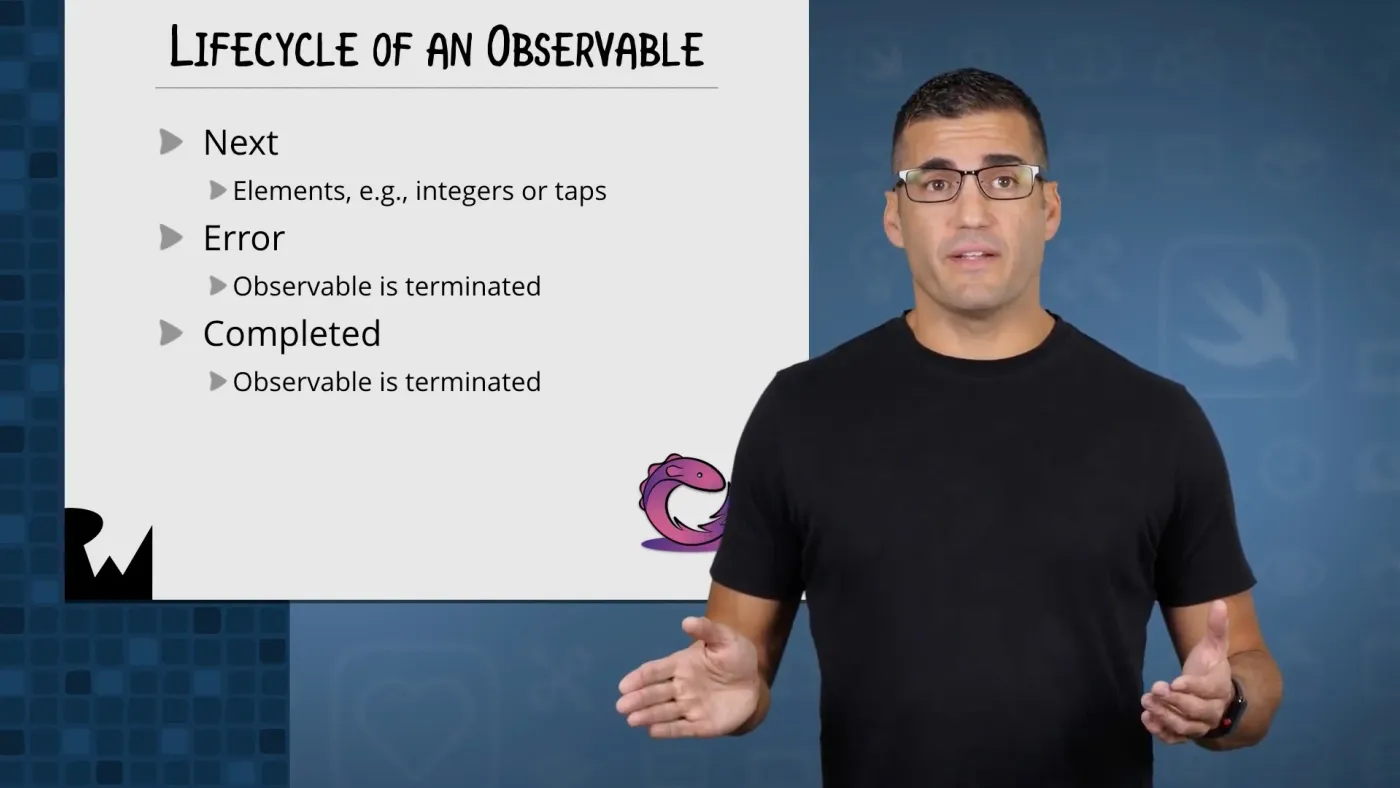
As an active programmer, I consume a lot of programming-related content. The outcome of my anecdotal non-scientific experiences of watching code presentations, and tutorials resulted in me discovering problems regarding the tasks, tools, and processes encountered by developers when presenting their programming projects. From my observations, I noticed that developers encounter the following challenges:
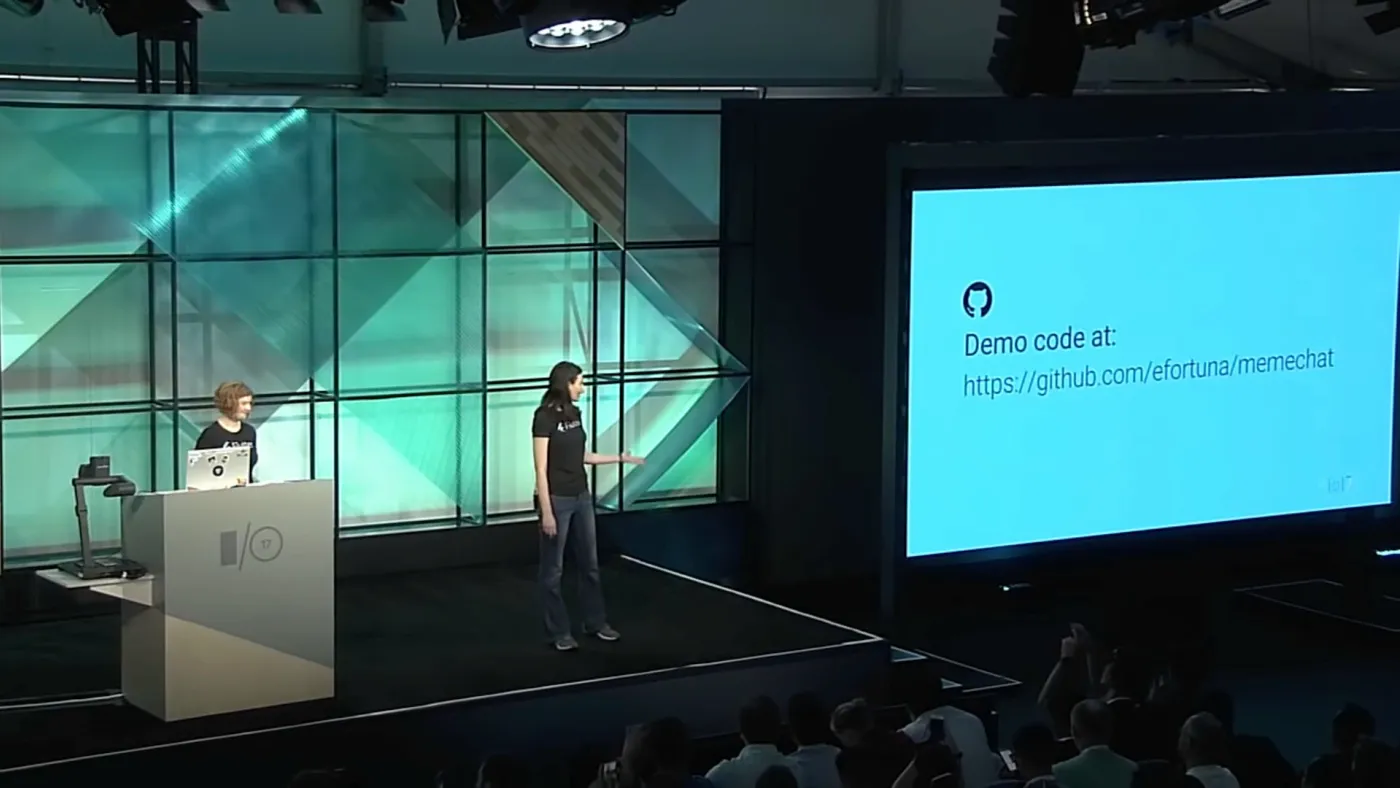
Typing code generates typos leading to bugs and errors disrupting the flow of the presentation to fix their mistakes
During a tech demo, the Google developer made a typo mistake on line 187 at minute 17:36, resulting in an error at minute 18:01 that prevented the code from running, thus disrupting her presentation.

Slide 1 of 3
Quotes
I've always really wanted to be like one of the people who can do live coding. But I just can't I'm like a really really slow typer and I make such typing mistakes and I get very very nervous… sometimes the best way to communicate about code is to show the code

Jani Eväkallio. (2018). Writing Code like a Real Hacker (VS Code Macro Extension) Retrieved from https://www.youtube.com/watch?v=rO8-cgtkZSw
I used to take screenshots of code snippets to include them in my presentations. That was very impractical. If I wanted to make changes to the code, I’d have to rewrite it, take a screenshot again, and copy-paste it into Keynote once again. That soon became tiring and highly ineffective

Sara Soueidan. (2021). A couple of ways to highlight code syntax in Apple Keynote slides. Retrieved from https://www.sarasoueidan.com/blog/copy-paste-from-vscode-to-keynote/
Sharing good quality code that is visual that is clear that people can see is super super super super important and sometimes when we are watching a presentation and we don't get to see the code we just close it and move on so all the work you put in your presentation just goes to the drain when the audience cannot see what you're presenting

Marcia Villalba (2021). How to present code. Retrieved from https://www.youtube.com/watch?v=8B6p2_QCzTU&t=212s
These insights sparked my curiosity, prompting me to explore more questions and assumptions through the knowledge quadrant exercise.
Knowledge Quadrant
Identifying 29 risky assumptions, guesses, unknowns, and questions regarding code presentations from the secondary research to pursue answers in the research plan.
My secondary research left me with many unanswered questions, and assumptions about the behaviors and challenges developers encounter when making presentation tutorials. I used the knowledge quadrant framework to list all concerns and assumptions early on, which helped in generating questions for the research plan.
The result of creating the knowledge quadrant was Identifying 29 risky assumptions, guesses, unknowns, and questions regarding code presentations that needed to be addressed in the research study. Here are some of the main questions and assumptions I would like to answer in this study:
- How do typing errors and bugs impact the overall quality of code presentations?
- How do developers currently handle presentation notes, and what improvements are desired in this aspect?
- What specific challenges do software developers face in preparing and presenting their code?
- What tools do developers use to help them prepare and present their code?
After defining the knowledge quadrant and getting a general idea of what I wanted to research, I started to work on the research plan.
Research Plan
Devised a research plan outlining objectives, scope, methodology, timeline, resource allocation, data analysis plan, and findings, providing a structured framework to keep me organized and focused throughout the research process.
Before conducting the research, I needed to create a research plan to define a roadmap for the research project. The research plan is important because it outlines the goals, questions assumptions, project overview, scope, methodologies, and essential components of a research study. It provides a structured framework to keep my research organized and focused. The result was a structured document used for guidance when working on my research methods. Throughout the research, the document was constantly updated to reflect the most recent findings. Based on my goals, time limitations, and recruitment challenges, I decided to use competitive analysis and user interviews as my main research methods. I initially wanted to conduct remote contextual inquiries as I thought it was a more appropriate method to observe users’ tasks, behaviors and understand how they interact with products or systems, and capture detailed workflow information of their process of preparing and presenting programming presentations however, I found it a massive ask considering the work and time investment participant would have to commit for an uncompensated research study. After finishing the research plan, I started working on the interview plan in preparation for the user interview.
Read More - Research Plan Document
Overview
With the evolution of the digital landscape and various platforms, more opportunities have emerged for learning and teaching software development. Whether it's a professor conducting a live coding lecture (e.g., Harvard CS50x taught by David Jay Malan), a content creator producing programming tutorials (e.g., Brian Voong), or a developer showcasing a tech demo at a software development conference (e.g., Google I/O), the potential for identifying and addressing issues related to software presentations has never been greater. The generative research aims to explore and understand the users, their needs, and behaviors to identify opportunities, define problems, and generate insights to explore the possibility of developing a SaaS product designed to target the pain points and inadequacies associated with preparing and presenting code presentations.
Problem Statement Summary
FYI: Problem statement is updated to reflect the most recent research data.
Per my research study, software developers face an array of diverse challenges that impact their productivity when preparing and presenting code. The following pain points are considered by the majority of participants to be manually intensive, error-prone, knowledge-dependent, and cognitively demanding tasks. These challenges include problems with preparing and organizing the build order of their code, typing code leading to errors, bugs, typos, and compiler warnings, note taking on code leading to poor code readability and the overall complexity of the source code and project resulting to creating less content due to the amount of work it takes to complete a project. These issues occur during code preparation, leading to investing a massive amount of time completing projects, and during coding presentations, hindering progress. Addressing these challenges is crucial to improving productivity, eliminating errors, and streamlining the presentation and preparation process, allowing developers to focus on content delivery rather than grappling with code and presentation-related hurdles.
Research Goals, Questions, Assumptions
Goals And General Broad Themes
Project Planning
- Gain insights into the code planning process and assess whether developers write code before planning their material.
- Understand the factors that influence the developer's decision-making when considering programming projects for presentation.
- Investigate whether the amount of source code influences developers' decisions in preparing their projects.
Code Setup
- Examine the steps and procedures developers undertake when configuring their code for presentation.
- Do developers organize the presentation content in a logical and coherent structure?
Notes
- Evaluate whether developers are writing notes for their projects, and if so, how and where these notes are documented.
- Understand the developer's note-taking process.
- What tools do developers use when taking notes?
Code Presentation
- Delve into user behavior and the dynamics of developers presenting their code.
- Pinpoint common challenges developers face during coding demonstrations.
- Comprehend the specific needs and expectations developers have regarding coding presentations and error handling.
Tooling
- Identify user preferences concerning code presentation tools, features, and functionalities that facilitate project preparation.
- Do participants use presentation tools like Keynote, PowerPoint, or any software equivalent tools?
- Have participants use any code-oriented tools like Animotion or Motion Canvas.
- Evaluate the participant's biggest frustrations with the tools they use.
- What do their current tools do well that help them present code?
Efficiency Metrics
- Assess the time spent by developers on setting up and organizing code.
- Quantify the time invested by developers in creating presenter notes.
- Measure the time developers allocate to presenting their code.
- Asses tasks that are:Manually IntensiveCognitively demandingError-proneKnowledge dependent
Ideations
- Analyze the ideal solutions a participant suggests for solving their code presentation hurdles.
Competitive Analysis
- Explore existing solutions within the market and figure out their strengths and weaknesses.
- Identify features or approaches employed by competitors that address the identified challenges.
- Do presentation tools in the code presentation market address the concerns and expectations of their targeted demographic?
Assumptions, Opinions And Questions
All questions and assumptions are listed and addressed in the knowledge quadrant. Part of the main goal of the research is to answer the questions, opinions, and assumptions listed in the knowledge quadrant.
Scope
Team & Stakeholders
User Experience Researcher
- Ricky. B
Budget
There is no budget for this research project. Participants will have to voluntarily participate without expecting compensation.
Target User Group
The following outlines the user profiles for software developers who showcase and prepare programming projects with the purpose of:
Creating educational and informative programming tutorials
- 7 out of 8 total participants recruited
Showcasing informational slide show presentation
- 0 out of 8 total participants recruited
Conducting a live programming demo
- 1 out of 8 total participants recruited
The ideal research study would total 24 participants per target user group.
Recruitment
Participants will be sourced through various channels, including Reddit, Meetups, social media, programming forums, and Discord. Prospective participants will be required to complete a screening survey. The most suitable candidates aligning with the user profiles will then be selected for interviews. Ideally, I aim for 8-12 participants per target user group to properly assess their tasks, behaviors, pain points, and unmet needs. The total of participants will be greater than or equal to 24.
User Interview
- Conduct interviews with a minimum of 8 participants to gain qualitative insights about the tasks, habits, behaviors, pain points, and overall process of presenting and preparing code.
- Explore scenarios where challenges are most pronounced and understand the impact on developers' workflow.
Competitive Analysis
- Analyze competitors in the code presentation tools market to understand the landscape and identify potential gaps or areas for improvement.
- Evaluate the strengths and weaknesses of competitor products through hands-on testing and feature comparison.
- Consider user feedback on competitor products to extract valuable insights into user expectations and areas of discontent.
Timeline
The following are based on estimates
Milestone Estimated & Timeframe Completion
- Competitive analysis: 1-3 days
- Screener survey: 1 day
- Recruiting participants: 1 month
- Interview: 1-2 weeks
- Affinity diagram: 2-3 weeks
- Task analysis & Optimization: 2-3 weeks
- Research report: 1 week
Deliverables
- Task analysis & Task analysis Optimization
- Affinity diagram
- Research report
- User Insights
- Competitive Analysis
- Knowledge Quadrant
- Problem Statement
Risk And Challenges
- Lack of budget might impact participant recruiting
- Not meeting the minimum amount of participants due to a lack of participation
- Lack of oversight and feedback from the research team
Tools
- Notion
Research Plan
User Interview
Created a user interview plan and screener survey to conduct a semi-structured open-ended user interview collecting qualitative data from 8 participants, to understand user experiences, needs, preferences, and behaviors, yielding insights on code setup, note-taking, and planning.
After defining the user interview plan and screener survey, I conducted a semi-structured open-ended remote user interview to understand user needs, gain insights, validate/invalidate assumptions, inform design decisions, and answer research questions. To prepare, I first worked on a user interview plan to help me outline the methodology for conducting user interviews. Then I worked on the research screener survey to identify and select individuals who meet specific standards.
User interview Process
1. Read More - User Interview Plan
Defined the interview plan outlining objectives, target user groups, recruitment process, interview script, questions guide, and more in preparation for the user interview.
Before conducting the interview, I first needed to understand the key components and objectives of a well-structured user interview, for this reason, I created a user interview plan. The user interview plan helps me outline the methodology for conducting user interviews. Key components include defining objectives, target user groups, recruitment process, interview script, questions guide, roles, tools, project timeline, findings, and analysis. The interview plan is structured to answer the questions and objectives from the knowledge quadrant and research plan. The result of a well-executed user interview plan is a rich source of qualitative data that clarifies questions and assumptions from the research plan. In the interview plan, I defined 24 questions for the user interview. Each question was organized based on themes derived from the research plan I wanted to explore.
I used the knowledge quadrant exercise and other secondary research information to come up with 9 themes for the interview questions guide.
User interview question themes
- Warm-up: Simple on-topic questions related to their motivations for making programming presentations.
- Project planning: Understand if developers write code before planning, analyze factors influencing project selection, and investigate the impact of source code size on decision-making during project preparation.
- Code setup: Examine developers' process in configuring projects for presentation, assessing whether they organize code content with defined key sections, and the overall flow of their code preparation.
- Notes: Evaluate developers' note-taking practices for projects, explore how and where they document notes, understand the note-taking process, and identify the tools commonly used by developers for this purpose.
- Code presentation: Delve into the dynamics of developers presenting their code, identify common challenges faced during coding demonstrations, and understand developers' specific needs and expectations concerning coding presentations and error handling.
- Tooling: Identify user preferences for code presentation tools, including conventional ones like Keynote or PowerPoint and code-oriented tools like Animotion or Motion Canvas. Evaluate the frustrations and strengths associated with their tools in facilitating code presentations.
- Efficiency metrics: Assess developers' time spent on setting up and organizing code, quantify the investment of time in code documentation and presentations, and evaluate tasks based on manual intensity, cognitive demand, error-proneness, and knowledge dependence.
- Ideations: Analyze the ideal solutions a participant suggests for solving their code presentation hurdles.
- Wrap-up: Address the participant's feedback and questions.
2. Read More - Screener Survey
Created a screener survey to identify and select individuals who meet specific criteria for participation in the user interview. Due to recruiting difficulties, I settled for recruiting 8 participants instead of the targeted 24 candidates.
Recruiting the right participants for the research study is essential for generating quality data. For this reason, I used a research screener survey as a tool for recruiting the targeted participants for the user interview. Its primary purpose is to help me identify and select individuals who meet specific criteria for participation in the user interview. Based on the target demographic, I created a survey of 10 questions that would help me filter out the best candidates for the study. As a result, I managed to successfully recruit at least 8 participants for the user interview study. One big issue I faced with recruiting was finding people for the study. I spent a long time trying to get the right participants. Even though I reached out to potential candidates directly, I got a lot of no responses and cancellations. That's why I ended up recruiting only 8 participants instead of the planned 24. If I had a budget, ideally I would have liked to recruit 8-12 participants for each of the 3 targeted user groups.
Lack of Participants and Diversity Challenges
Recruitment challenges prevented me from securing the desired 24 candidates, including those with accessibility needs. This limitation affected the data aggregation process for user interviews, as well as the analysis and synthesis required for affinity mapping and task analysis. Among the three target user groups, most of the participants came from group one shown below.
Target User Group
The following outlines the user profiles for software developers who showcase and prepare programming projects with the purpose of:
- Creating educational and informative programming tutorials
- 7 out of 8 total participants recruited
- Showcasing informational slide show presentation
- 0 out of 8 total participants recruited
- Conducting a live programming demo
- 1 out of 8 total participants recruited
Solution & Considerations
Ideally for recruiting, having a budget, an adequate amount of time, and a team of experienced researchers would have allowed me to screen and recruit the ideal 24 candidates and people with accessibility needs.
Read More - Screener Survey Document
Screener Survey
Overview
The screener survey aims to filter out non-targeted candidates and identify ideal interview participants who specifically engage in programming presentations showcasing code. This focused approach ensures efficient and relevant participant selection for a user interview research study in the programming and code presentation domain.
Script
Hello, my name is Ricky and I am contacting you to know if you would be interested in participating in an interview study. The goal is to understand the process of how you set up and present your code. If you are interested please refer to the survey linked below. The survey will take approximately 5 minutes to complete. Click this link to participate.
Tools
Notion
Google Forms
Introduction
Hello and thank you for participating in the survey! The goal of this survey is to find participants who have experience in presenting code including, tutorials, slide show presentations or live coding for a potential user interview. Please take a few moments to answer the following questions honestly. Your responses will remain confidential. This survey should take approximately 3 to 5 minutes to complete. Thank you once again for your participation, and let's get started!
Questions
1. What is your age?
- [ ] Under 18
- [ ] 18-24
- [ ] 25-34
- [ ] 35-44
- [ ] 45-54
- [ ] 55 or older
2. If you are selected, Would you agree to a 60-minute non-compensated recorded interview?
- [ ] Yes
- [ ] No
3. This interview is conducted in English, are you comfortable understanding and conversing in English?
- [ ] Yes
- [ ] No
4. Are you a software developer?
- [ ] Yes
- [ ] No
- [ ] Other (please specify)
5. How would you describe presenting your code? (Select all that apply)
- [ ] Through video tutorials
- [ ] Slideshow presentations, conference meetups
- [ ] Live coding, demos
- [ ] I don’t present code
- [ ] Other (please specify)
6. Do you have any accessibility needs, debilities, or other conditions that might affect your ability to present code?
- [ ] Yes
- [ ] No
7. What development environments do you regularly use? (Select all that apply)
- [ ] Visual Studio
- [ ] IntelliJ IDEA
- [ ] Eclipse
- [ ] Delphi
- [ ] VS Code
- [ ] Xcode
- [ ] Atom
- [ ] Sublime Text
- [ ] Other (please specify)
8. Which programming languages are you proficient in? (Select all that apply)
- [ ] Java
- [ ] Python
- [ ] JavaScript
- [ ] C
- [ ] C++
- [ ] Kano
- [ ] Other (please specify)
9. What is your full name?
10. What is your email? (This is only used to contact you if chosen)
Thank you for taking the time to take the survey. If chosen I will contact you via email.
From the interviews, I collected over 256 responses from 8 participants, gathering insights and findings on various aspects including:
- Information about how developers prepare their code for a presentation
- Code presentation tasks, processes, and tools
- Tools and tasks regarding note-taking and code documentation
- Source code size and complexity impacting project preparation
- Error-prone tasks and bugs when presenting code
- Cognitively demanding tasks like typing and explaining code at the same time
- Testing, building, and running code projects
- Tools and desired features for presenting and preparing code
Here is a list of some key insights from the interview:
- Code Build Order and Setup: 7 of 8 participants organize/document their code to prepare for a presentation. However, many of them complain that this manual process is time-intensive, leading to making fewer presentation projects as desired or preferring to make smaller presentation projects with less code.
- Typing Code: 8 of 8 participants experienced frustration while typing code, leading to errors and typos during project presentations. To avoid typing code, participants resorted to alternative methods such as copying and pasting pre-written code and using After Effects or Keynote to manage the code presentation typing process.
- Notes and Documentation: 6 of 8 participants take notes to help them present their code presentation projects. Some write scripts, and documentation on their preferred note software while others write notes on their code making the code hard to read when presenting.
Another interesting insight was that participants used multiple tools for accomplishing different code-related tasks mainly because the current tools in the market weren’t suitable for their code-specific use cases for example, not being able to build and run their code in real-time to demonstrate a working demo during a presentation. Most participants were unaware of code-specific presentation tools and relied on tools they were already familiar with.
Competitive Analysis
Conducted hands-on testing and feature comparison on 3 competitor products within the presentation market, evaluating their strengths and weaknesses, generating artifacts and insights informing and influencing UI features, sketches, and wireframes.
After conducting user interviews and gaining an understanding of user needs and preferences, I moved to the competitive analysis. The Insights from the user interviews provided valuable context for conducting a meaningful competitive analysis. Understanding user perspectives, pain points, and expectations helped in evaluating competitors' features from a user-centric perspective rather than just a feature comparison. I used insights from the interviews to create tasks for evaluating three competing products: Keynote, Animotion, and HackerTyper. The goal is to answer some of the questions and assumptions related to presentation tools listed in the knowledge quadrant exercises and research plan; gain a deep understanding of the code presentation market landscape and identify potential gaps or areas for improvement. This involved hands-on testing and feature comparison to evaluate the strengths and weaknesses of competitor products. I also delved into user feedback to extract valuable insights into user expectations and areas of discontent informing strategic decision-making by identifying improvements, and opportunities within the code presentation tool market.
One major hurdle was mastering code-oriented knowledge-dependent tools such as Animotion and HackerTyper, both of which presented a steep learning curve. Fortunately, my programming experience helped me use these tools effectively.
The biggest takeaways were the following:
Competitive Analysis Chart
I gathered information from Keynote, Animotion, and HackerTyper about the market, download metrics, and revenue streams to inform product features and UX considerations. I noticed that the tools have varied features catering to their targeted demographics. For example, Keynote has many great features for presenting slide decks but lacks code features like syntax highlighting, formatting, and other advanced systems. Animotion offers numerous programming abilities for presentations; however, you cannot build and run your project, making it less ideal for live programming. Lastly, HackerTyper allows you to run and test your code but lacks major presentation features and is not user-friendly.
Hands-on Research And Collected artifacts and insights
For each product, I used my technical programming background to do hands-on research where I rated each product's (0-5 lowest to highest) ability to perform code presentation-related tasks. According to my score system, Animotion scored the highest(15 of 20), Keynote came second (9 of 20) and HackerTyper came last (7 of 20). Despite Animotion scoring the highest, it had two major flaws, you can't build and run your code to demo a feature and it has a steep learning curve. For the analysis, I gathered artifacts like pictures and insights about the strengths and weaknesses of each tool informing and influencing design decisions later in my study. The artifacts I gathered helped with brainstorming features for the sketches and wireframes. Many of the UI layouts and some features that were sketched and wireframes were inspired by the visual analysis report of the 3 products I analyzed.
One major hurdle was mastering code-oriented knowledge-dependent tools such as Animotion and HackerTyper, both of which presented a steep learning curve. Fortunately, my programming experience helped me use these tools effectively.
Voice of the Customer (VOC)
I found some user reviews and feedback regarding their concerns about presenting code.
Crashes all the time and doesn't replay macros properly.

Visual Studio Marketplace. (2018). VSCode Hacker Typer. Retrieved from https://marketplace.visualstudio.com/items?itemName=jevakallio.vscode-hacker-typer
Apparently it's just junk. It doesn't play back macros correctly! You can't cancel a "Save", and it doesn't save macros If it were possible, I'd award it 0 stars. Macro recording and management should be a part of VS Code, shouldn't be delegating such a fundamental feature to the aftermarket.
Visual Studio Marketplace. (2018). VSCode Hacker Typer. Retrieved from https://marketplace.visualstudio.com/items?itemName=jevakallio.vscode-hacker-typer
This could have been a great extension for my coding videos but it doesn't understand that I am calling snippets. It also does not understand Visual Studio Intellisense, it just records the text, not what the text which came after calling the snippet
Visual Studio Marketplace. (2018). VSCode Hacker Typer. Retrieved from https://marketplace.visualstudio.com/items?itemName=jevakallio.vscode-hacker-typer
Apple Keynote doesn’t come with code syntax highlighting built in. I really wish it did, and hope that Apple would at some point add this feature, especially considering how many developers and engineers use Keynote to create talk slides.
Sara Soueidan. (2021). A couple of ways to highlight code syntax in Apple Keynote slides. Retrieved from https://www.sarasoueidan.com/blog/copy-paste-from-vscode-to-keynote/
Read More - Competitive Analysis
Overview
The goal is to gain a deep understanding of the code presentation market landscape and identify potential gaps or areas for improvement. This involves hands-on testing and feature comparison to evaluate the strengths and weaknesses of competitor products. I will also delve into user feedback on competitor products to extract valuable insights into user expectations and areas of discontent. The main objective is to inform strategic decision-making by identifying opportunities for improvements within the code presentation tools market.
Strengths & Weaknesses
Keynote
Strengths
- Pre-installed on Mac computers, making it readily available
- Industry-standard general-purpose presentation tool
- Intuitive and user-friendly interface with a low learning curve
- Abundance of online resources for learning how to use the tool
Weaknesses
- Exclusive to Mac OS
- Not designed for displaying code, lacking syntax highlighting, formatting, and code integration
- Limited utility for showcasing code effectively
Animotion
Strengths
- Free and open-source
- Platform agnostic, catering to various operating systems
- Robust code support and multimedia capabilities
- Versatile, allowing the addition of JavaScript libraries
- Functions as a playground for testing products
- Well-documented for ease of use
Weaknesses
- Geared towards web developers, requiring proficiency in JavaScript, HTML, CSS, and Svelte
- Dependencies are necessary, adding complexity
- The steep learning curve for beginners
- Lacks a graphical user interface (GUI), relying entirely on code
HackerTyper
Strengths
- Free and compatible with Visual Studio Code, a widely used code editor
- Utilizes Visual Studio Code's features for enhanced functionality
- Enables building and running projects, reflecting an authentic programming environment
Weaknesses
- Exclusively tied to Visual Studio Code
- Missing crucial code presentation features such as adding presenter notes, presenter screen, and code prepping
- No GUI; operates as a plugin, requiring familiarity with Visual Studio Code
- Subpar user experience, providing little context or direction on code organization
Affinity Diagram
Defined the affinity diagram to identify patterns, themes, and insights from the interviews resulting in 14 clusters of data reflecting patterns in error-prone tasks, code setup, note documentation, and many more.
After conducting the interviews and competitive analysis, I used the affinity diagram to organize and analyze the qualitative data. The goal is to identify patterns, themes, and insights from the research findings. It involves grouping related data points into clusters, assigning labels to represent themes, and extracting insights.
The outcome was the creation of 14 clusters of data organized based on themes, aiming to identify the common issues participants face.
- Typing Code: Discovered 31 data points on challenges in typing code. Quote: “The biggest frustration I have with presenting code is the fact that I have to retype the source material that I prepared leading to typos errors and occasional bugs which take time to find and fix”.
- Code Creation: Data aggregation of 36 diverse methods of how participants create code for their presentations.
- Automation: Analyzed 13 clusters of Information regarding tools and features for helping automate manual, error-prone tasks.
- Code Build Order & Setup: Accumulated 41 data points regarding the participant's process of setting the code build order of their projects.
- Tools & Features: Assessed 71 data points regarding the participant’s preferred tools and features for preparing and presenting code.
- Error Prone Tasks & Bugs/Errors: Identified 34 diverse data points about tasks that are error-prone which may lead to bugs and errors in the code.
- Notes and Documentation: Discovered 43 data points regarding the process of participants writing and documenting notes for their code presentation projects.
- Time-Intensive Tasks: Identified an aggregate of 61 data points participants find time-intensive sometimes leading to making fewer presentation projects.
- Source Code Size & Complexity: Accumulated 25 sources of information regarding source code size and complexity influencing presentation output and complications organizing code.
- Cognitively Demanding: Analyzed 19 clusters of data regarding tasks that the participants find cognitively demanding affecting their presentations and productivity.
- Educational Informative Content Creation: Found 8 data points concerning participants’ desire and motivations for creating content and programming presentations.
- Project Creation Frequency: Identified 9 participant insights regarding information about their content creation output and how it impacts their projects.
- Testing Code, Building, and Running: Discovered 10 data points regarding participant's need to build and run their project for testing purposes and to show the project outcome.
- Tools Setup & Settings: An aggregate of 16 sources of information demonstrating the diverse set of tools, hardware, and software settings participants prepare when presenting code.
Task Analysis & Optimized Task Analysis
Developed the task analysis to identify the steps and actions users take to complete tasks that are manually intensive, cognitively demanding, error-prone, and knowledge-dependent, resulting in the development of systems improving code build order setup, writing notes, automating tasks, and making code presentations.
After synthesizing the data in the affinity diagram, I created the task analysis to document and analyze how users interact with a product or system to accomplish specific tasks related to organizing, presenting, and documenting code.
Task Analysis Process:
- Big picture: Defined the participant's steps, systems, tools knowledge, workaround, questions, and issues based on the affinity diagram and user interview research data.
- Details: Added intricate details to each category i.e. what type of tools participants use, their planning process, how they organize code, their problems, etc.
- Optimize: Created an optimized task analysis turning manually intensive, error-prone, cognitively demanding tasks and processes into systems to improve the UX of making and presenting programming projects.
The goal is to identify the steps and actions users take to complete tasks that are manually intensive, cognitively demanding, error-prone, and knowledge-dependent, as well as any potential challenges or pain points, and replace them with systems. This analysis helps me gain insights into user behavior, preferences, and needs, ultimately informing the design and improvement of systems to improve the user's experience. The result of creating the task analysis was a detailed overview of the improvements within the code documentation, organization, and code presentation domain. The following list some problems and system improvements discovered in the optimized task analysis.
System Improvements
Code Build Order & Setup
- Problem: Many participants experienced issues and frustrations with organizing the code build order in complex projects leading to massive time investment and resorting to using other tools and methods to facilitate the process.
- System: The proposed system streamlines code preparation for developers, enabling dynamic code sequential grouping, and customization to enhance presentation efficiency, minimizing manual effort, reducing errors, and boosting productivity.
Notes And Documentation
- Problem: Participants argued that writing notes and documenting their code is time-consuming, with many claiming that adding notes directly to their code makes the reference material hard to read and navigate. Others prefer using alternative note-taking tools for script writing and code documentation to avoid cluttering their code projects.
- System: A notes system can be built specifically for adding notes to code. Similar to Keynote's ability to add presenter notes on slides, the system would allow the participant to add notes to any character, word, or block of code to their project. Notes can be modified to their liking and will co-exist with their code only being shown when necessary to avoid distracting the developer.
Code Automation
- Problem: The majority of participants expressed their desire for automation tools to help them automate typing code and other code presentation tasks, aiming to enhance their productivity. Many stated that typing code is time-consuming and error-prone, leading to typos that cause bugs and errors in their source code. These bugs often result in disruptions during their presentations, forcing them to fix the code before continuing with the presentation.
- System: The system can simulate the typing of code leaving the developers to focus on presenting their projects. The automation system can allow the participant to record mouse or keyboard actions that they can play when presenting code. These actions include navigating to a new source code file, deleting/creating files, source code editor UI navigation, and interaction among other things.
Code Presentation
- Problem: Code editors and IDEs lack code presentation features leading participants to use tools like Keynote, PowerPoint, and After Effects to help them present their code. When presenting code, the majority of participants split their setup into multiple monitors causing them to multitask which can be cognitively demanding.
- System: A great amount of inspiration will be taken from presentation software like Keynote and PowerPoint for developing creative systems that will help address the common code presentation pain points. Some of these features include a dedicated presentation screen, presenter notes, animation transitions, animation build order, object highlighting, and content navigation.
Syntax Highlighting and Formatting
- Problem: Participants want tools and features that reflect their development environment, including syntax highlighting, formatting and auto-completion, and other code editor-specific features and accessibility settings.
- System: Build a code editor that supports syntax highlighting and formatting for the majority of programming languages. Add support for accessibility settings like making the font size bigger and improving color contrast in code.
Research Report
Created the research report to document insights and findings gained from the user interview, affinity diagram, and task analysis, providing actionable recommendations to improve key issues.
I made a research report to document and summarize the findings from the user research study. The research report includes the project overview, objectives, research study flaws, participant demographics, findings, insights, and suggestions and opportunities. The report aims to communicate insights and findings gained from the user interview, affinity diagram, and task analysis, providing actionable recommendations to improve the user experience. If I were working in a team, this document would be essential for informing stakeholders about key discoveries and guiding decision-making processes to improve the UX of code presentations. The result was an in-depth analysis of findings, insights suggestions, and opportunities for the following:
- Code Build Order & Setup
- Typing Code
- Notes and Documentation
- Source Code Size & Complexity
- Error Prone Task & Bugs/Errors
- Cognitively Demanding, Multitasking
- Testing Building, And Running Code
- Tools, Features, and Software Layout
The systems generated from the insights served as a foundation for sketching and wireframing the four main features of Prescode.
Read More - Research Report Document
Potential Study Flaws
Limited Pool of Participants
Ideally 8 to 12 participants per target group needed to be recruited for a diverse set of data aggregation. In total, I needed to conduct about 24 interviews to get a better assessment of the problems, tasks, and behaviors of each target user group to gather diverse research data. Due to the lack of budget, time constraints, and general complexity of finding and recruiting participants, appointment cancelations, or no-shows, I had to compromise the research study and use 8 participants.
Lack of Participants With Accessibility Needs
0 participants with disabilities or accessibility needs were recruited or interviewed to analyze potential UX concerns and problems, therefore biasing research for able-bodied individuals.
Improving Research Insights Using Contextual Inquiry
Considering the main purpose of this study was to understand the idiosyncrasies of the participant's tasks regarding presenting programming projects, I should have considered ethnographic research instead of user interviews to better asses their actions, interactions and observed behavior, and any missed opportunities that were not accounted for in the interview.
Participants
8 out of 8 of the participants are male. Most work in the tech industry as software engineers. Their experience ranges from front and back-end web development to video game and mobile app development. The majority of the participants create content for teaching and sharing programming knowledge. All participants are considered power users considering they are software engineers possessing knowledge-dependent whereabouts using an array of complex and industry-standard tools to develop and troubleshoot their projects.
Findings and Insights
Code Build Order & Setup
Code Organization and Build Order
- P1: Writes comments on their code sequentially numbering the build order. They like to show how they create every single line of code believing it's more natural and appreciated by the audience.
- P2: Likes guiding viewers through each step, and organizes code sequentially to use the code as a reference. They like to go through the entire code repeatedly until they feel comfortable explaining all the project details. They also make sure to cover things in the right order, following a logical sequence for coding.
- P3: Organizes code based on build order writing notes that serve as a reminder to cover/explain code. Groups code into smaller projects that will eventually be turned into tutorials. They do this so they don’t get overwhelmed with making one long video and it's easier to track code because the projects are a lot smaller.
- P4: Normally writes scripts for complex projects covering important aspects of the code. The script helps structure the tutorials in a manner that is clear and orderly and helps them explain programming concepts or code in great detail. The script is responsible for organizing the code, which helps them know what code goes next.
- P6: Reviews the project source code, comments out sections that will be uncommented and explained later in the tutorial, and uses a script as a guide for indicating the code build order and for indicating pointers for telling them when they need to copy/paste code and when they need to transition to the next piece of code. This step is crucial because sometimes they forget what code came first.
- P7: They Write comments next to the code to show good and bad examples when explaining the code. When presenting, the code examples are commented/uncommented where appropriate.
Time Investment and Complexity Considerations
- P1: Writing notes to set the code build order can take a while to document because they have to think and plan on what code comes next.
- P2: Code setup takes about an hour; Recognizing that programming isn't always written from top to bottom, they acknowledge the need to review the code back and forth. As a result, arranging and pasting code in the correct order is a time-consuming process, and this duration varies depending on the size of the project being worked on.
- P3: Code organization is a time-intensive process; 2-4 hours is dedicated to preparing the code and any material. ”My process is very time intensive which is why I don’t post as often”. Time-consuming processes include editing tutorials and preparing presentation material.
- P4: Writing scripts and organizing code can take time, especially for complex projects.
- P5: Time spent making a video from scratch ranges from 1-3 hours on average.
- P6: Most if not all of their code is copied and pasted to save time. Editing and setting up projects' code are the most time-consuming tasks.
- P7: Setting up code takes 30 mins to 1 hour; Recently they’ve been making shorter videos because it takes less time. Setting up projects' code and editing are the tasks that take the most work; creating slides and animations can also be time-consuming.
Tools/Features For Setting the Code Build Order
- P1: Used Keynote for organizing code but gave up on the app when trying to set the animations build order of their code making the process frustrating. Keynote lacks important features for presenting code, like adding syntax highlighting or formatting.
- P2: Used a slide show presentation software for trying to organize the project's build order however they found that the features aren’t suited for setting up code. Syntax highlighting and formatting challenges and setting animation order.
- P6: Tried using Keynote once but after tinkering with it for a while they decided it wasn’t the right tool for what they were looking for. They were too frustrated trying to copy and paste code and a lot of the source code editor features were missing.
- P7: Utilizes Keynote for technical screencasts with animations; sets the order using build order functionality.
Suggestions and Opportunities
Code Organization and Build Order
Build a system that allows developers to sequentially group code in whatever order they prefer. The system would allow developers to dynamically group code by character, line, or blocks thus addressing their issues of tediously manually ordering code. The system would allow the developer to dynamically set the build order of every piece of code giving the developer the freedom to write as much code without having to worry about the complexity of the project's source code when preparing the code for presentation. The Build system would allow developers to group the code they want to emphasize when discussing a concept related to the highlights code. The system can also meet other developer code presentation needs such as replacing, deleting, and highlighting code.
Time Investment and Complexity Considerations
Building a system that streamlines a developer's build order code preparation process would significantly reduce the effort and error-prone nature of manually grouping code thus enhancing the developer's productivity. To further improve the system, AI can be used to predict common code grouping patterns based on common syntax formatting structures, and build patterns. Developers can upload their source code files directly to the system allowing for easy modifications to source code files.
Tools/Features For Setting the Code Build Order
The main feature of grouping code will be prominent on the UI allowing users to quickly access the tool or use key commands as shortcuts for grouping code. The system will support the majority of programming languages allowing developers to modify system settings like code theming, formatting, syntax highlighting, and text accessibility settings. Similar to the Keynotes presenter screen feature, the system can demonstrate the code build order to inform the developer of the code that is going to be shown next and an overview of the presentation's source code.
Typing Code
Challenges and Frustrations, Error Prone
- P1: When presenting, they’ve expressed being frustrated with retyping source material, leading to typos and errors, taking away focus from the content. “The biggest frustration I have with presenting code is the fact that I have to retype the source material that I prepared leading to typos errors and occasional bugs which take time to find and fix”
- P2: Dislikes typing code from scratch, and finds it error-prone and time-consuming.
- P3: For complex projects, they spend more time in general writing code, however, they try to avoid written code as much as they can because it’s very error-prone, and don’t want to introduce bugs. Writing code can be difficult because they have to constantly check their notes and reference code all the time which can get confusing.
- P4: Retypes code step by step from a sample repository. Multitasking with reading notes, code, and typing code can be overwhelming making avoiding errors a challenge. When typing code, they try to do their best to not make any errors or mistakes so they don’t spend too much time editing. They make mistakes while typing code, such as typos, miss-placing code, and forgetting to write code which disrupts their flow.
- P5: Believes that real-time coding tutorials, where the programmer types each line, are slow and prone to mistakes, they like taking a different approach to content creation. They stress how important it is to write the code themselves to understand how it works and to work out any kinks.
- P6: Doesn’t like typing code because they make a lot of mistakes. They decide not to re-type code because it is error-prone and it saves them a lot of time.
- P7: Believes it's important to write the code line by line. They find people who copy and paste code frustrating because too much information is shown which makes it hard to follow along.
- P8: “Sometimes when recording the video and I am typing the code, I make mistakes, a lot of mistakes because you know I have to type everything” They make a lot of mistakes when live coding, sometimes these mistakes are typos, misspellings, missing code, or errors that prevent them from building and running the code. When live coding, they take audience questions, occasionally going "off script" to explain concepts through additional code writing.
Time Investment in Typing Code
- P1: Takes 30 min - 1 hour for long programming projects, involving typing, explaining, and fixing mistakes. “It also does not help that I have to spend quite a bit of time just typing the code instead of focusing on the material I plan on covering”
- P2: When live coding, they figure things out in the moment without much planning which takes longer because they are solving problems as they arise, often making mistakes that lead to errors and bugs, and fixing things can be time-consuming.
- P3: Half of the time for larger projects is dedicated to explaining and typing code. Some projects are over 11 hours worth of content so for those projects they spend more time in general writing code.
- P4: Time spent typing code varies based on familiarity and research, ranging from 10-15 minutes to a couple of hours. Having to record themselves and retype the sample repository code again on Visual Studio Code can be frustrating at times because typing takes a long time and you are always bound to make a mistake. They believe that recording themselves re-typing the sample repository and postproduction work like editing the video is what's most time-consuming for them.
- P6: Writing the code for the project can take a long time depending on the amount of code they have to write and the research they have to do. Prefers avoiding typing code due to frequent mistakes, believing it saves time.
- P7: The time spent on making tutorials depends on the size of the source code. Some projects are short others are long. They take longer to show code because they have to type the code line by line sometimes.
Efficiency and Automation
- Many Participants expressed their desire for automation tools to help them automate typing code among other functions to enhance their productivity.
Suggestions and Opportunities
Challenges and Frustrations, Error Prone
To circumvent errors, warnings, typos, and other human errors, the system needs to take care of automating the process of typing code. The system can simulate the typing of code leaving the developers to focus on presenting their projects. This system will allow the developer to transition their code similarly to how someone would transition through a presentation slide. Using a custom keystroke a developer can transition through their whole code with the touch of a single button. A developer can transition back and forth through their code without having to worry about typos or compiler errors.
Time Investment in Typing Code
The developer can run their presentation, theoretically as many times as possible without making a single mistake because the system will take care of writing the code for them. No more would the developer spend hours or minutes typing, copying/pasting their code when presenting; when stressed for time, the developer can set the speed of the typing of code, making it faster or slower as they see fit.
Notes and Documentation
Annotating Code for Build Order and Documentation:
- P1: “Annotating the build order of the code is the most important process because it tells me what code I need to write next, It is also the most annoying part because it just takes too much of my time” Documenting code also consists of adding notes next to code that they feel like needs to covered in depth.
- P2: Writes notes whenever possible to document code, it serves as a reminder for them to cover specific topics or explain certain sections of code. Notes are organized into themes corresponding to the project's code.
- P3: Takes notes to indicate the order of typing code. Writes Notes mostly for adding commentary and documenting pieces of code. When setting up their project, they review their code and write notes that serve as a reminder to cover/explain code.
- P4: In some videos, they write full scripts, and in other videos, they write bullet-point notes. For more complex projects, they create a script that covers crucial aspects of the code. The script structures tutorials in a clear and orderly manner, facilitating detailed explanations of programming concepts or code. It plays a key role in organizing the code, guiding the presenter on the sequence of code segments, and ensuring a cohesive and comprehensible presentation.
- P5: Chooses not to write a script for videos to avoid sounding scripted, occasionally leaves code comments. Instead, they opt for doing voiceovers recording audio in small parts almost sentence by sentence.
- P6: Writing a script is something they often do, especially for coding tutorials, sometimes they go off the cuff. Uses the finished project as a reference when writing the script to see what programming concepts they need to cover and code they need to explain. The script serves as a guide, indicating when to copy/paste code and facilitating smooth transitions between code segments. Constantly references the script during video creation. To save time, they prefer using copy-and-paste methods for presenting most, if not all, of the code. When recording tutorials, their process involves them reading the script and uncommenting pre-written code when they cover that part of the project in whatever order they plan on showing the code.
- P7: Utilizes good and bad code examples on the project and comments/uncomments the code when appropriate. Writes notes/comments usually on the sample project source code. The Sample code is commented out to avoid interfering with the final source code.
- P8: They add comments next to the code to document the code and remind them of what should be written first. They also write comments directly to their reference code for presentation purposes. They review their whole reference code and write comments on the code to guide them in presenting code and doing commentary. The side notes help them navigate through the project to make presenting code in an orderly manner easier.
Tools Used for Note-Taking and Documentation
- P1: Writes their notes on Visual Studio Code after the code has been written.
- P2: Writes notes in OneNote to document code, organizes code into themes, and avoids excessive notes for better source code readability.
- P4: Manages video ideas in Notion, using bullet points or scripts depending on project complexity; script-writing time varies.
- P6: Uses Google Docs for notes and annotations and highlighting their notes.
- P7: Adds comments next to code for good and bad examples, avoids scripted content, and writes notes in Keynote for explanations.
- P8: Prefers Google Docs for documentation and Google Slides for theory-based presentations. Uses Google Docs for writing documentation and comments directly in the reference code; spends around an hour writing notes for a presentation.
Challenges and Frustrations
- P1: Annotating is time-consuming, especially when reviewing the whole code; wishes for a better option for adding notes. “It would be nice if there was a better option for adding notes to my code as adding too many notes makes it hard for me to read the reference material when I present code”
- P2: They are cautious not to write excessive notes, as it can make them difficult to read on their second monitor. The second monitor is divided between the notes and the code, serving as a reference for them.
- P7: The Sample code is commented out to avoid interfering with the final source code.
- P6: Frustrated with pre-production and post-production tasks, including researching topics and editing footage, audio, and visual effects.
Time Spent on Note-Taking
- P1: “Too much time if you ask me” The time varies from project to project but it can take anywhere from 30 min to 1 hour”
- P2: Estimates spending around 10-30 minutes writing notes but mentions that it depends on the project size and depth of the project. For bigger projects with more complex code, it could take more time.
- P3: Dedicates 10-30 minutes for note-taking, longer for larger projects; emphasizes the importance of well-annotated code because it makes recording videos easier.
- P4: The time spent writing scripts for tutorials varies based on project size and the depth of coverage desired. Scripting can take 30 minutes to an hour, depending on the extent of detail the participant aims to cover in the tutorial. The size of the scripts is influenced by project complexity and the level of explanation required.
- P6: Spends 20-30 minutes writing notes, and uses Google Docs for annotation and highlighting.
- P7: Spends maybe 10-25 minutes writing notes, It depends on the project and the amount of research that is needed.
- P8: Depending on the size and complexity of the topic, it usually takes them an hour to write notes for a presentation, especially if they need to conduct research.
Authenticity vs. Scripted Content
- P7: Prefers authentic content, avoids scripted videos; and writes comments next to code for authenticity.
- P5: Chooses not to write a script to maintain a natural, unscripted feel in videos.
- P6: Often writes scripts for coding tutorials, uses the finished project as a reference, and includes pointers for copying/pasting code.
Referencing Code and Navigation
- P1: Keeps their reference material on a secondary monitor for referencing when making tutorials.
- P2: They are cautious not to write excessive notes, as it can make them difficult to read on their second monitor. The second monitor is divided between the notes and the code, serving as a reference for them.
- P3: Keeps notes on a second monitor for reference during video recording.
- P4: Has multiple monitors for placing their notes and code.
- P6: Uses the finished project as a reference when writing scripts, ensuring coverage of programming concepts.
- P8: Reviews the whole reference code and writes comments to guide code presentation and commentary.
Suggestions and Opportunities
Annotating Code
A system can be built specifically for adding notes to code. Similar to Keynote's ability to add presenter notes on slides, the system would allow the participant to add notes to any character, word, or block of code to their project. Notes can be modified to their liking and will co-exist with their code only being shown when necessary to avoid distracting the developer.
Tools Used for Note-Taking and Documentation
The system would handle documenting every note of the participant. Participants would no longer have to worry about writing their notes on a separate notes application or on their source code which can make code harder to read impacting their cognitive thinking. An AI system can be used to write explanations of selected code making it easier for the developer to research and explain topics.
Time Spent on Note-Taking
Due to the system's simplistic nature of annotating code, developers no longer have to spend countless minutes or hours finding and documenting their code which can be a manually intensive task. No matter the project's complexity or size, the system's rudimentary nature will allow the developer to easily add notes on a whim.
Referencing Code and Navigation
Similar to Keynotes presenter notes features when presenting a project, the system would handle showing their notes on the presenter screen when they transition to the code that has been annotated. The presenter screen will show them the relevant notes in context to the code that has been annotated. The participant can use the presenter screen as a guide to see what annotated code comes next. Because the system will handle showing their notes and code in an orderly manner, they no longer have to multitask reducing cognitive load and facilitating presenting code in general.
Source Code Size & Complexity
Project Creation Frequency
- P1: Work frequency depends on project complexity; long projects take a month, and simple ones take 2-3 weeks. Currently, they don’t make projects as often as desired due to the substantial amount of work it takes to make presentations.
- P2: Project creation frequency varies based on project size; big projects take a month to create while smaller ones are created every two weeks.
- P4: Project creation varies, sometimes they make 2 tutorials a month and sometimes 1 every two months. They work full-time as a full-stack developer and making tutorials takes a lot of time and energy, for this reason, they don’t upload as frequently as they would like to.
- P6: 2-3 presentation projects are created a month but the development of projects depends on the type of content they are making, longer form videos courses require more work taking hours to make therefore they are made less frequent.
Presentation Project Size, Lines of Code (LOC) per Project
- P1: Typically generates around 1,000 LOC per project, including boilerplate code.
- P2: Depending on the project, the source code can range from a couple thousand LOC for big projects.
- P3: Source code size varies, for small projects, the amount of source code can range from 40 lines of code to a couple thousand LOC for larger projects not including framework-related boilerplate code.
- P4: Tutorials over 2 hours usually have a couple hundred to a thousand LOC, depending on project size and complexity. The size and complexity of the project usually determine the length of the video, therefore, longer videos mean more code they have to write and cover and shorter videos imply writing less code for small projects.
- P5: Focuses on simplicity; source code size ranges from a couple of lines to a few hundred.
- P6: Projects range from a couple hundred to thousands of LOC; long-form content takes hours to make.
- P7: Source code size depends on the complexity of the project. Usually, their projects contain a couple of hundred LOCs, and even fewer LOCs for smaller projects.
- P8: Projects vary in complexity, with some OpenGL projects having a lot of rendering code. Most projects are a couple hundred to a couple thousand lines of code.
Video Length and Content Strategy, Time Investment
- P2: Presentation lengths vary and depend on the size of the project. Typical video lengths are 15-30 mins for tutorials, and 1-2 hours for live coding sessions, lasting longer due to their impromptu nature and real-time problem-solving.
- P3: Time spent on projects varies from 30 minutes to over 11 hours for large tutorials.
- P4: Making tutorials takes a lot of time and energy; time spent depends on project size. Longer videos imply more code to write and cover, and shorter ones for simple projects.
- P5: The majority of videos are short, ranging from 3-8 minutes.
- P6: Tutorial duration varies based on source code length. The average video length is about 1 hour and 30 minutes, focusing on long-form content.
- P7: Spends about 30 mins to 1 hour setting up code; time spent on tutorials depends on source code size.
Content Complexity and Preparation
- P1: Tries to avoid complexity to make programming tutorials easy. “Usually I end up making tutorials on showing people how to make simple fully functional apps and try to avoid complexity as much as possible to make programming tutorials easy”
- P2: Ensures topics aren't too complex to minimize preparation time.
- P5: Prioritizes simplicity therefore creating smaller less complex programming projects with small to medium-sized code.
- P7: Frequently focuses on topics that require little research for short-form videos requiring minimum effort.
Suggestions and Opportunities
Automation Increases Project Creation Frequency
With the aid of the systems automating the majority of the presenter's tasks, developers won't have to worry about the complexity and source code size of their projects because they won't have to organize code and document code leading to developers being more productive and creating more tutorials.
Error Prone Task & Bugs/Errors
Code Review and Bug Checking
- P1: Reviews source code to ensure it builds and runs error-free, addressing bugs, updates, or improvements.
- P2: For complex programming projects, they stream themselves live coding without much prior planning, addressing coding issues as they arise. This approach leads to mistakes, errors, and bugs, making the debugging process time-consuming. “it's good for me when I copy and paste in the code because it's less error-prone if you go running your code you're rarely going to have a syntax error which makes it easier for me to record tutorials”
- P3: Checks projects for bugs, and errors, and ensures functionality; They want to make sure the project is functional and any framework they use is updated to reflect the latest version. Editing and deleting source code files can be challenging as it disrupts the workflow. However, regularly building and testing the code is beneficial for identifying errors and bugs and showcasing progress to the audience.
- P4: They write the code initially for the project and check for warnings and bugs introduced during the coding process.
- P6: Checks the project for bugs, typos, or warnings to make sure the code is functional; This step is important because they don’t want to be sharing code that is buggy and nonfunctional.
- P7: Ensures code quality by checking for bugs or performance improvements when writing code.
- P8: They make a lot of mistakes when live coding that prevent them from building and running the code. Upon encountering an error, they review the code for simple mistakes like typos, misplaced code, or fixable compiler errors. For more complex issues, they refer to their reference code to ensure consistency between projects. Their troubleshooting approach prioritizes resolving the problem quickly, reflecting a preference for efficient error resolution without extended time investment.
Handling Errors
- P1: Edits out parts involving fixing mistakes or bugs during video editing; re-records parts with errors in the script.
- P2: If errors occur, they either redo the task or edit out the mistake during the video editing process. Errors are annoying because they disrupt the flow of their presentation and cause them to spend more time on the presentation than needed.
- P3: Accounts for errors in post-production, cutting out mistakes, or re-explaining parts; bad sections are edited out from the final video.
- P5: Errors consist of misspeaking or misreading the script; mistakes, pauses, and unwanted material are edited out in post-production.
- P6: All mistakes, long pauses, loud noises, and unwanted material are edited out and corrected in post-production.
- P8: Makes mistakes when live coding, especially typos, and errors; reviews code for simple mistakes and troubleshoots more complex errors.
Use of External Tools
- Participants who need to check their code for bugs, warnings, and errors need to build and run their code using a source code editor that allows them to compile their code. Most participants use VSC for debugging building and running code.
Suggestions and Opportunities
Code Review and Bug Checking
Some participants expressed their desire to build and run their projects on their preferred development environment to test the code for bugs, errors, and performance improvements. The system should allow the developers to present their code on their source code editor of choice allowing them to use their ideal tools and systems to troubleshoot code. Because the system is going to automate typing code, developers won't have to worry about mistakes, therefore, streamlining their presentation process and making their workflow more efficient.
Handling Errors
Participants will no longer have to spend minutes or hours editing their mistakes or prolong their tutorials trying to fix errors because the system will automate most manually intensive error-prone tasks.
Cognitively Demanding, Multitasking
Challenges in Referencing Material and Multitasking
- P1: Uses their laptop as a secondary screen for referencing material while presenting or live coding on their main desktop. The back-and-forth between referencing their sample project and the code being written can be overwhelming, leading to a potential loss of focus.
- P2: Acknowledges the non-linear nature of programming and the need to go back and forth between code sections can be cognitively demanding. Using a second monitor, they divide the screen between notes and code for effective reference but notes that jumping between monitors can be confusing.
- P3: The participant divides code into smaller projects to avoid feeling overwhelmed during tutorial creation. They use a second monitor to jump back and forth between reference code and notes but note that multitasking in this manner can be challenging.
- P4: Multitasks when recording tutorials by having two screens, one for the sample repository and the other for the new coding repository. They multitask by reading notes, coding, and typing simultaneously, acknowledging the potentially overwhelming nature of this process.
- P6: Multitasks by reading scripts, uncommenting pre-written code, and copying/pasting code as needed during recording, aiming to avoid distracting viewers with excessive content.
- P7: Emphasizes the importance of showing only relevant code during video recording to avoid distracting viewers. They prefer presenting code line by line rather than copying and pasting large sections to enhance clarity for the audience.
- P8: Utilizes a second monitor for reference code to check when making errors during coding.
Suggestions and Opportunities
Challenges in Referencing Material and Multitasking
Participants expressed their concern with multitasking and cognitively demanding tasks leading to confusion and making mistakes. Multiple systems can be put in place to handle the majority of manually intensive error-prone tasks. These systems include the ability to sequentially group code in an orderly manner, the ability to annotate/document any piece of code, automate rudimentary common developer tasks like creating, and deleting files/code custom mouse and keyboard action, and the ability to have a dedicated presenter screen showing the developer relevant information that will help them present their projects.
Testing, Building, And Running Code
Writing and Testing Code
- P1: Reviews the project's source code because they write a lot of code, they make sure that it builds and runs without any errors, they also check for any bugs and updates and improve the code if needed.
- P2: Builds and runs their code in the terminal to check for errors, warnings, and bugs.
- P3: Test their code and check for improvements, updates, or errors.
- P4: Prioritizes writing and completing the tutorial code first to circumvent mistakes during recording. They regularly run their projects to identify warnings, and bugs, and ensure smooth functionality.
- P6: Runs the project to observe code results and utilizes the terminal in Visual Studio Code (VSC) for debugging and executing commands.
- P7: Emphasizes checking for bugs and performance improvements while writing code to ensure everything functions correctly.
- P8: When writing the code they constantly test the project to see if everything works accordingly. Their process includes actively typing and explaining code or concepts to the audience while consistently building and running the project to test the code. This dynamic approach allows them to showcase real-time results to their audience throughout the tutorial or presentation.
Suggestions and Opportunities
Writing and Testing Code
The system will be a separate entity that will enable the developers to sequentially order code, annotate, and add automative actions to facilitate the preparation and presentation of programming projects. If developers want to build and run their code for testing purposes or to show results, they can accomplish those tasks because the system would not interfere with the developer's tools and would mainly serve as a complementary autonomous system.
Tools, Features, and Software Layout
Source Code Editors
- P1: Uses Visual Studio Code (VSC) and Xcode for source code editing. Visual Studio Code is not meant for presenting code therefore they have to do the bulk of the code presentation prep work. Prefers using Visual Studio Code as it allows them to write, modify, debug, and build code in real-time, reflecting their actual work process, and appreciates its flexibility, extensive functionality, and popularity among source code editors.
- P2: Prefers Visual Studio Code for coding and OneNote for note-taking, expressing the need for automation features within VSC to improve productivity. When they need to run code they switch to the terminal window to check for bugs or errors. They find features such as syntax highlighting and the wide range of plugins to be valuable. The ability to type code directly in the editor, along with the capability to debug and run applications in real-time, adds to the overall positive experience with Visual Studio Code.
- P3: For most projects, they use Sublime Text as their preferred source code editor primary for the styling. They like Sublime Text because adding clear and easy-to-read syntax highlighting and formatting is important for them because it makes the code easier to scan. When making tutorials they need to have a clean work environment that is free from distractions and anything that is not relevant to the presentation.
- P4: Utilizes Visual Studio Code for source code editing. For Visual Studio Code, they like the fact that they can set up their development environment, and it's their tool of choice when doing web development, having different themes, and syntax highlighting options is always nice to have.
- P5: Enjoys Visual Studio Code for source code editing, favoring it for its massive functionality, customization options, and a large supportive community. They appreciate the ability to change syntax highlighting themes and adjusting text size, ensuring code readability, especially on smaller devices.
- P6: When using Visual Studio Code, they prioritize displaying as much code as possible, removing distracting UI windows for the viewer's clarity. They keep their script and reference project on a secondary screen. To cater to mobile users, they ensure text size is maximized in VSC. Additionally, they use their cursor to highlight and provide context for the code they are explaining. They like how they can use the terminal in VSC to debug code or run commands.
- P7: Uses VSC for their preferred source code editor. In VSC they like choosing a font and syntax highlighting that is readable and has good contrast.
- P8: Uses VCS as their preferred source code editor and a large array of plugins. Github for submitting and sharing their source code.
Presentation Software Features and Tools
- P1: Used Keynote for trying to present code but expressed dissatisfaction due to its limitations in effectively displaying code. Attempting to organize code was frustrating as Keynote lacks essential features such as syntax highlighting and formatting, which are crucial for presenting code effectively.
- P2: Used Keynote for animations and visuals but faced challenges with code presentation features such as syntax formatting and highlighting. Their process includes copying and pasting code from Visual Studio Code (VSC) into Keynote. In Keynote, they enhance the presentation by adding animations and visuals. Due to issues with code pasting in VSC, they make modifications, such as adjusting the background color in Keynote to match the code's background color, ensuring a seamless visual presentation.
- P3: Their presentations are split between showing visuals in post-production, showing chunks of code, and using After Effects to automate the typing of code. When covering the code sometimes they use Epicpen to write on the screen to explain concepts.
- P4: Uses Notion for managing video ideas. They have used PowerPoint before but not for programming. However, they appreciated its structured format for presenting content and found its animations and transitions to be appealing.
- P5: Uses Adobe Premiere for voiceover recording. They have never considered using presentation software to help them make tutorials. The process of adding animations for code and visuals in After Effects, along with video editing, is time-consuming. They often experienced frustration during the recording and editing stages, especially when they needed to do multiple retakes making the process tedious. Occasionally, they find it necessary to take breaks due to the repetitive nature of the recording process.
- P6: Uses Google Docs for writing notes and annotating/highlighting. They tried using Keynote once but after tinkering with it for a while they decided it wasn’t the right tool for what they were looking for. They were too frustrated trying to copy and paste code and a lot of the source code editor features were missing.
- P7: Combines Visual Studio Code with Keynote for technical presentations and animations. When creating technical screencast they use a lot of slides and they make sure to use as many animations as possible to allow them to teach one thing at a time to keep things engaging. They also like to use sophisticated animation on Keynote to teach advanced topics. They like using Keynote's build order functionality to arrange the sequence of animations in their presentation. Once the slides are complete, they export the animations to a video format and leave the editing process to the video editor. The creation of slides and animations is a time-consuming task for them. Faces challenges in Keynote when trying to copy and paste code with syntax highlighting. To overcome this, they resort to a workaround by copying the code into TextEdit to remove the background, then paste it back into Keynote. They’re frustrated with needing to use a source code editor to add syntax highlighting to Keynote.
- P8: They use Google Slides when they need to explain more theory-based topics. Google Slides helps them add visuals and animations to make the concepts easier to explain. They like animating through code when they don’t feel like typing or when they are working on smaller projects.
Desired Features and Automation
- P1: In VSC, there is no way to automate typing pre-written code. And there is no way of setting the build order of your code. VSC lacks a lot of automation tools that can help them automate a lot of their error-prone and mundane tasks. They want a way to simplify organizing code, add presenter notes, and improve workflow productivity by automating mundane tasks like typing code.
- P2: Expressed interest in Visual Studio Code to incorporate plugins that could automate certain code-related preparatory work, like auto-typing code to save manual effort similar to some of the animation functions of Keynote. They believe adding Keynote features that can automate manual tasks such as typing code and navigating the project would make them more efficient.
- P3: To streamline their process, they write extensive code in After Effects to automate tasks. Most of the code displayed to the viewer is animated using visual effects, simulating the process of typing code. This automation approach saves approximately 20% of their time, despite the initial investment of time required for setting up the automation.
- P4: They are not aware of any plugins or tools within VSC for automating their task but they would love to download any plugins that may help them improve their productivity so they can make more tutorials.
- P6: Desires a feature in Visual Studio Code that enables them to quickly clear the editor of distractions and unproductive UI elements with a single click. This feature would allow them to change the layout and settings for presenting code, including making text bigger, enhancing contrast, incorporating a typing plugin, and adding custom keyboard shortcuts for macros and other functionalities.
- P8: For presentations in which they don’t want to write code, they use Google Slides to automate writing the code. For these projects, they mostly focus on showing and explaining code which makes it easier and less error prone. Because they spend most of their time on VSC they would like to use more plugins for helping out with live coding presentations. Things like adding custom macros for automating code chunks, and keyboard and mouse actions.
Multiple Screens, Layouts and Settings
- P1: Uses a laptop as a secondary screen for reference material, using the main desktop for live coding. Switching between screens can be overwhelming at times.
- P2: Uses a second monitor, dividing it between notes and code for easy reference during presentations.
- P3: Splits their secondary monitor between notes and a reference project, keeping their source code editor open on the main screen. Ensures that Sublime Text is set up with proper settings and UI presentation layout before recording, focusing on code readability and minimizing distractions for viewers.
- P6: Emphasizes setting up recording software on the primary screen, optimizing text size for mobile users in Visual Studio Code (VSC), and expressing a desire for a feature in VSC to clear distractions and adjust code presentation settings.
- P8: Commonly uses a second monitor for their reference code, especially when encountering issues and needing to check their code.
Suggestions and Opportunities
Source Code Editors
The system is not a source code editor but it will incorporate features like support for syntax highlighting and formatting for the majority of programming languages, accessibility features that will allow the developers to change the text size of code among other settings, and a minimal non-intrusive UI layout to avoid distracting viewers making the code and concepts being discussed the main attraction. Developers will still be able to use their desired tools without having to compromise their workflow.
Presentation Software Features and Tools
A great amount of inspiration will be taken from presentation software like Keynote and PowerPoint for developing creative systems that will help address the common pain points of the participants. Some of these features include presenter screen features, animation transitions, animation build order, object highlighting, navigation, and playing media.
Desired Features and Automation
The main purpose of the system is to automate as many mundane manually intensive error-prone tasks. With the invention and utility of AI, the system can integrate an AI framework as a third party to aid the users in accomplishing tasks such as researching ideas and explaining code in detail. The system can allow the participant to record mouse or keyboard actions that they can play when presenting code. These actions include navigating to a new source code file, deleting/creating files, source code editor UI system navigation, and interaction among other things.
UX - Interaction Architecture
Sketches
Used insights and findings from the research report to create sketches for exploration, ideation, and iteration aiming to define sketches for the following systems: code build order & setup, notes and documentation, tasks automation, code presentation, UI layout, and other systems outlined in the suggestions and opportunities report.
Using the suggestions and opportunities from the research report and the insights and findings from the competitive analysis, I began ideating and sketching, hand-drawn visual representations of design ideas to explore concepts. The main purposes of creating UX sketches include feature exploration, ideation, and iteration. A lot of the findings in the competitor analysis inspired some features for the sketches including, the UI layout reflecting VSC UI layout, Keynote’s presentation screen features, and Animotions code build layout.
The sketches resulted in brainstorming the following key systems:
Code Build Order & Setup
Sketched a system for developers to organize code effortlessly in their preferred order, eliminating manual sorting. This system allows dynamic grouping by character, line, or blocks, streamlining code organization and presentation.
- The snippet system helps group and order code, avoiding the need to organize code manually.
- The 2 lines of code highlighted in yellow are grouped to form a snippet.
- Snippets are added to the composition window, which can be re-organized
Slide 1 of 4
Wireframes
Turned the sketches into medium-fidelity wireframes outlining the product's structure, layout, and functionality clarifying and optimizing the overall design, user flow, and UI layout of my sketches.
After brainstorming and sketching solutions, I took the best sketches and turned them into wireframes which involved creating medium-fidelity visual representations of the product's structure, layout, and functionality. The purpose is to clarify and optimize my sketches' overall design, user flow, layout, and content placement. I treat wireframing as my playground where I iterate and improve design architecture adding key features derived from the sketches and systems defined in the affinity diagram and research report.
The following main wireframes were created for the following 4 systems:
Snippet System
- The wireframe shows code snippets grouped by color. This feature demonstrates how users can utilize the snippet system to address issues related to grouping, organizing, and automating code typing.
- Inspired by the VSC editor and Keynote's animation order function, the composition window in the wireframe organizes and groups code snippets. It provides users with a convenient way to access and adjust the codes build order.
Slide 1 of 4
UI - User Interface Design
High Fidelity Design
Refined the wireframes creating a polished high-fidelity design of the user interface, defined color branding, typography, and interactive components for providing a realistic preview of how the final product will look and feel and for creating the conceptual prototype.
I refined and polished the wireframes into a high-fidelity visual representation of the product. Drawing inspiration from Xcode, VSC, and Keynote, I focused on defining the colors and UI aesthetics in Prescode to resemble tools commonly used by developers. Additionally, I adhered to common design practices and guidelines for web applications to ensure a user-friendly and visually appealing design. Creating a polished version of the user interface, that incorporates the final visual elements, colors, typography, and interactive components is important for providing a realistic preview of how the final product will look and feel and for creating the conceptual prototype.
- Maintained a cohesive visual style throughout the interface adding syntax color to code for better readability and reinforced the brand and design language assuring proper accessibility within color, and typography.
- Converted every wireframe into a high fidelity design ensuring UX consistency in the design of common UI elements like buttons, text fields and other interactive components.
- Xcode and VSC inspired the composition of the window's color, file hierarchy, and iconography. Using a dark surface color for the UI in Prescode was a strategic choice to create a sense of familiarity for developers accustomed to using IDEs and code editors.
Along with redesigning and polishing the wireframes, I created a design system to maintain consistency in my design.
Design System
Created the design system to define rules and guidelines, ensuring consistency and efficiency in developing user interfaces and systems for typography, color branding, icons, imagery, layout grids, and interactive components, facilitating the creation of high-fidelity design.
I created a design system for Prescode defining UI components and guidelines for the high-fidelity designs and branding. In the design system, I defined the rules, guidelines, and UI components to ensure consistency and efficiency in designing and developing user interfaces serving as a centralized resource for providing a common design language and framework for creating cohesive and visually appealing user interfaces. As a result, I created the following components for the design system:
Form Elements & General UI Components
Created visually appealing and user-friendly input fields, cards, and other commonly used components for composing UI windows.
Slide 1 of 6
Prototype Concept
Due to the complex nature of software development features, I failed to create a working prototype for user testing leading to crafting a simplified, conceptual representation of Prescode showcasing its four major systems: Snippet Tool, Note Tool, Action Tool and Presentation feature.
Prototyping is a crucial aspect of UX and user testing, after defining the wireframes and high-fidelity designs, I started to create a conceptual prototype of Prescode. I created a simplified, tangible conceptual representation of Prescode showcasing its four major systems: snippet tool, note tool, action tool, and presentation tool. The goal was to create a high-fidelity working prototype to test, validate, invalidate, identify potential issues, and gather user feedback on the design architecture before investing time and resources in full development, however, I encountered a massive issue.
Failed to create a working prototype for user testing
Due to the complex nature of software development, I was unable to conduct user testing as the existing prototyping tools in the market did not allow me to create a realistic prototype that met my standards for prototyping my systems for code presentations. Many prototyping tools are basic and lack the necessary functionality for creating more technical features. Consequently, I couldn't validate or invalidate my solutions with users and had to settle for making a conceptual prototype of Prescode.
The prototyping tools lacked the following:
- No support for code syntax highlighting and formatting
- No support for advanced text editing features like text cursor recognition, grouping, and highlighting words and characters
- No support for custom keyboard actions, and macros
- No support for typing automation
- No support for adding nuanced programming features that require asynchronous state variables
Even though I couldn’t use the prototype for testing, a conceptual prototype still has its uses. It's a valuable method for showcasing the main systems to stakeholders, gathering feedback, and also for technical evaluation from a developer's perspective. This way, stakeholders can visualize the functionality and flow of the product, while developers can assess the feasibility and implementation aspects of the features. Unfortunately for Prescode, a highly advanced technical prototype needs to be created in code to accommodate its advanced features to properly conduct a user test.
Solution & Considerations
To conduct a thorough user test for Prescode, it is essential to consider the development of a technical prototype using a software development framework such as Flutter. This approach ensures the incorporation of all necessary functionalities and consideration of edge cases within Prescode.
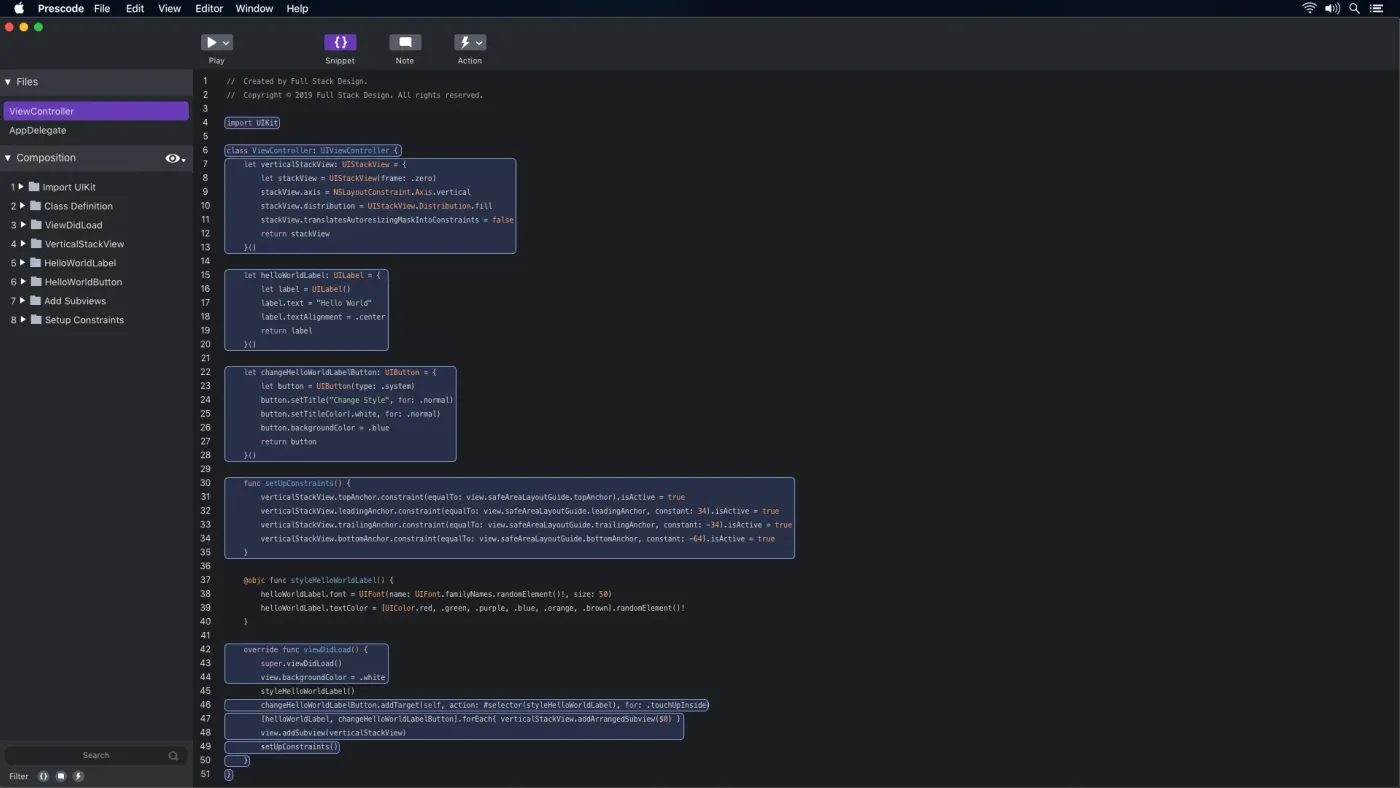
Snippet System
Participants were looking for a less time-consuming method to organize code efficiently. The timestamped segment (0:11 - 0:14) demonstrates how the snippet system in Prescode enables users to highlight, select, and group code to create snippets. These snippets are then added to the composition window, where users can track the composition and build order of each code snippet.
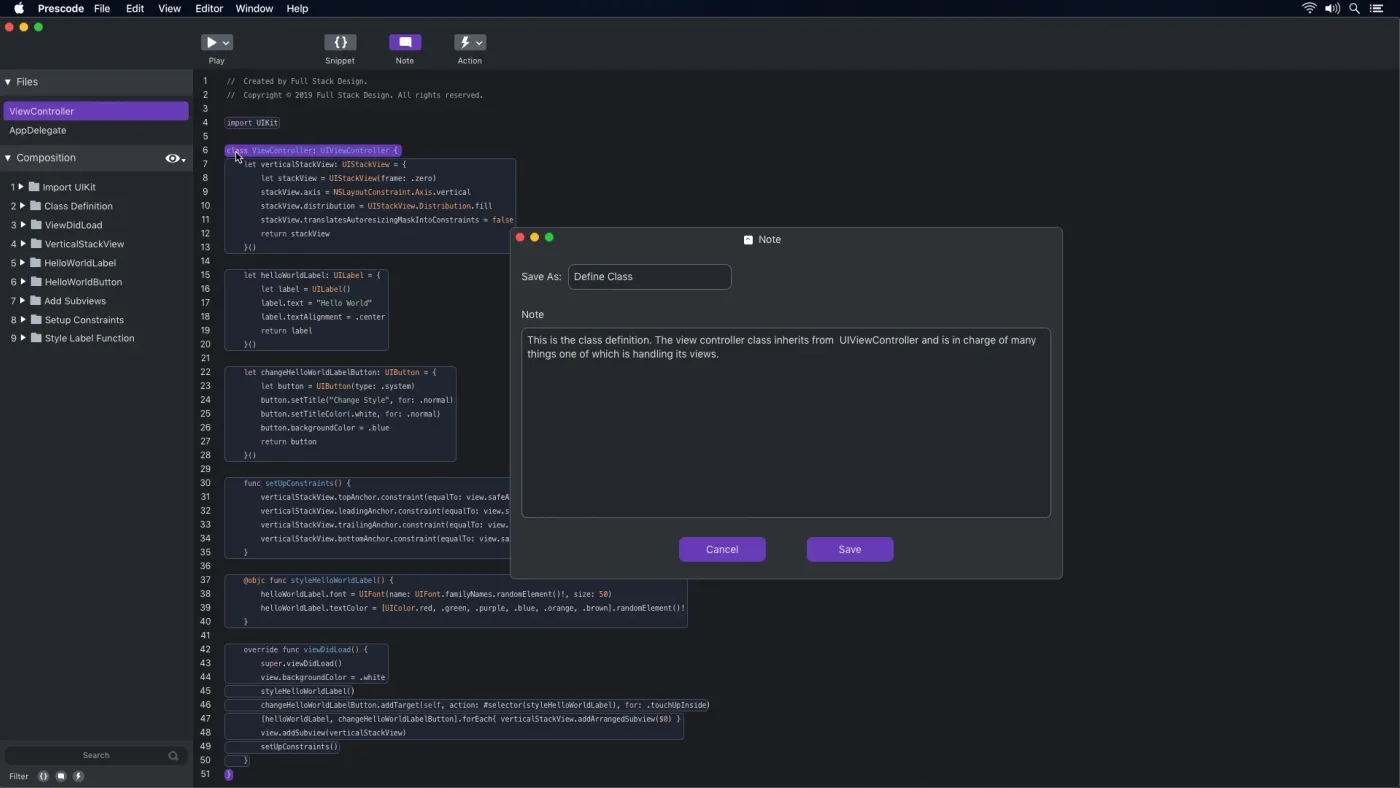
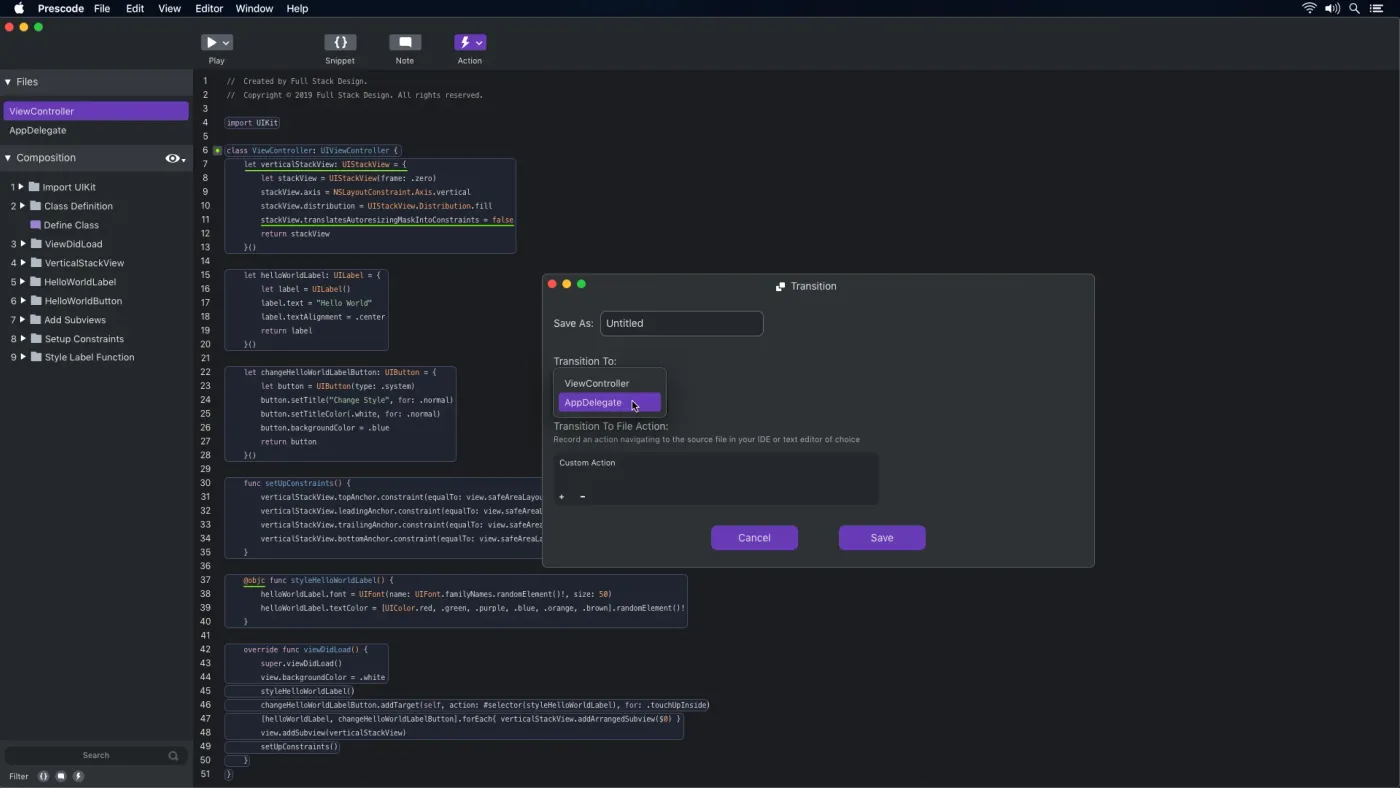
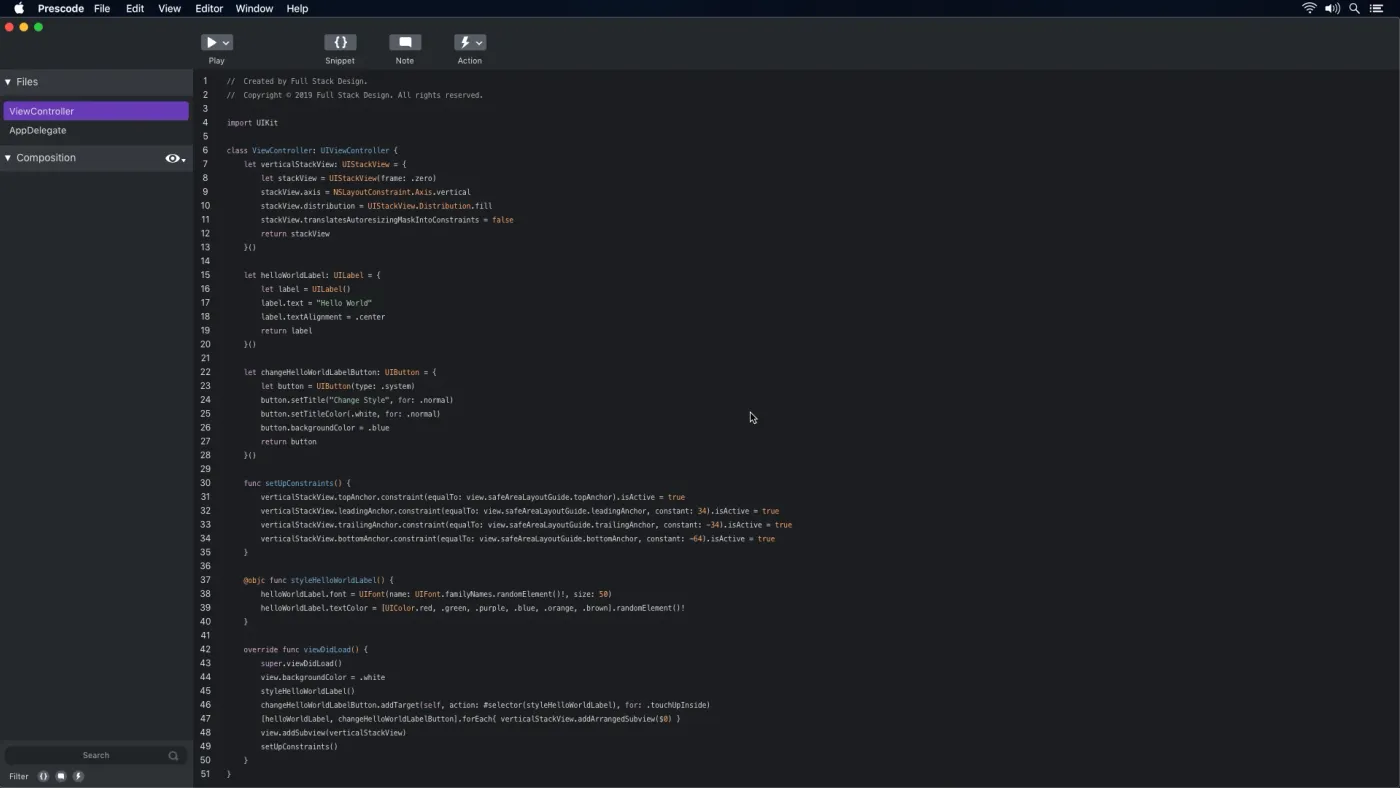
Slide 1 of 4
Conclusion
I managed to accomplish my main tasks and goals of identifying and understanding the pain points of software developers who present programming presentations via user-centered research. However, the case study remains inconclusive. I failed to conduct a user test because I could not get a working high-functioning prototype worthy of producing quality user feedback. Even though user problems and opportunities were identified in the generative study, I could not validate/invalidate my 4 systems created to solve the user's problems, thus I wasn’t able to create measurable metrics. As of yet, the case study remains open and active awaiting an opportunity to get a technical working prototype of Prescode for user testing.